Stream box: user guide
The CueSportAi stream box is a small PC that streams one table live to YouTube (or your club's other channels), with the score drawn over the picture. It does no AI scoring itself. The score comes from someone scoring the match: on the CueSportAi app, on the box's own screen, or on Digital Pool.
This guide is for the people who run the table day to day. To install a new box, see the install guide (club owners only).
1. What you have
| Part | What it does |
|---|---|
| Stream box | The small PC. It reads the cameras and microphones, adds the scoreboard and sends the stream. |
| Cameras | Up to four (USB, IP / network or NDI cameras). You choose which one is on air. |
| Microphone | The box's own mic, a USB mic or a camera's mic. On air only when Room Sound is on. |
| Screen (optional) | A TV or touch screen on the box shows the admin page. You can also use the CueSportAi app instead. |
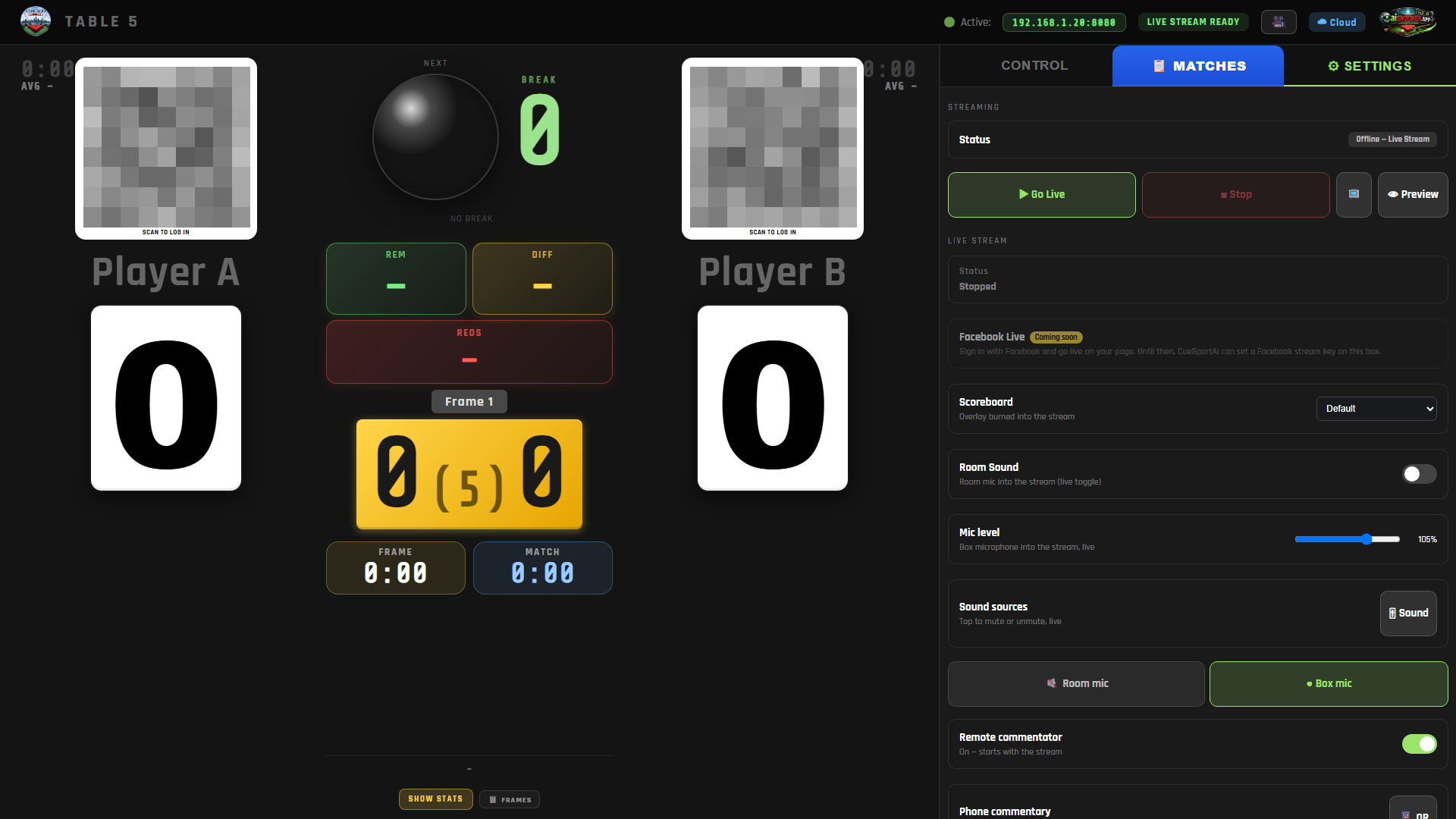
Two pages matter:
- Admin page: what the operator uses. It has three tabs: Control (the score), 📋 Matches (start or follow a match) and ⚙ Settings (streaming, cameras, sound).
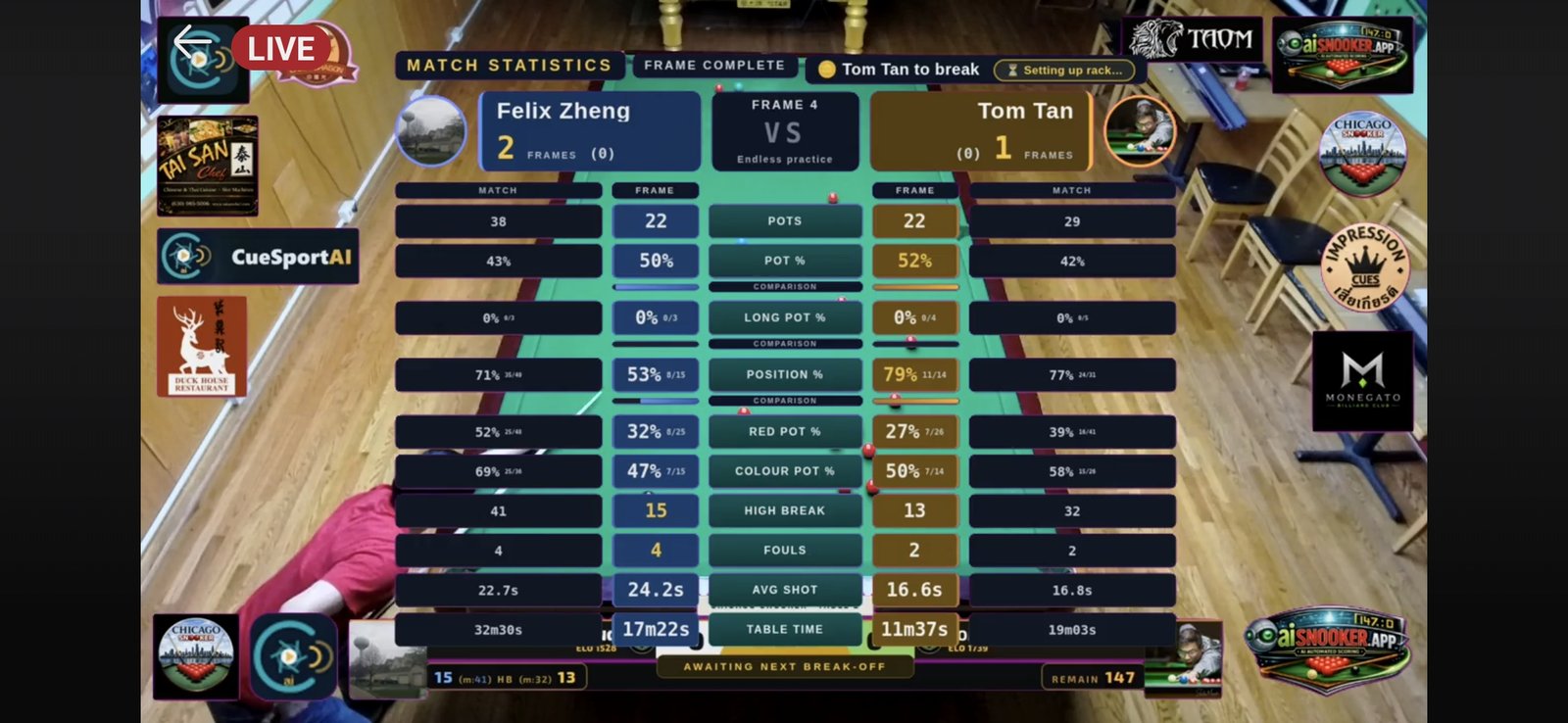
- Overlay: what viewers see on top of the picture: the players, the score, frames, the current break, ratings and your sponsors' logos.
2. Switch it on and off
- Switch on the box. It starts by itself and the screen shows the admin page after about a minute.
- Leave it on during opening hours. Cameras and the score are ready whenever you press Go Live.
The power button on the box:
| Press | What happens |
|---|---|
| Short press | The screen goes dark. Press again (or any key or remote button) to wake it. |
| Hold for 1.5 seconds, or press twice quickly | A menu: Restart, Power off or Cancel. |
A short press never stops the stream. Use the menu only when nothing is live.
3. Get the score onto the stream
The stream shows the match that is active on the box. Pick one way to score it:
| You score on | How the box gets it | Use it when |
|---|---|---|
| The CueSportAi app | The box follows the app's match on this table and updates within a couple of seconds. | Players or a referee score on a phone or tablet. |
| The box's own admin page | You score directly on the box. | You have a screen (touch or remote) on the box. |
| Digital Pool | The box follows a Digital Pool match from its link. | Pool events scored on Digital Pool. |
Score with the CueSportAi app
- In the app, start the match on this table. The box is listed by its table name or label, for example "Stream 1".
- Start the stream from the box: Go live on the box's admin page, or the 📡 Stream box row on the website's scorer. The box loads the app's match.
- Score in the app as usual. The overlay follows.
GO LIVE in the app streams from the phone's own camera, not from the box. Staff open the box's admin page from the app with Club Tables → 🔓 Open Admin; on the club Wi-Fi it asks for the operator PIN. See section 10.
Score on the box
- Open 📋 Matches, fill in the players and the format (snooker, multiplayer or pool), and press ▶ Start Match.
- Score on the Control tab.
If you press a scoring button on a match that the app is scoring, the box takes over the scoring from that moment and stops following the app.
Follow a Digital Pool match
- Open 📋 Matches and press 🔗 3rd-Party Match.
- Type the match code, or paste the whole Digital Pool link, and confirm.
- Choose the Pool scoreboard in Settings (see section 4).
A Digital Pool match is read-only on the box. It is scored on Digital Pool.
4. Go Live, Preview and Stop
These buttons are at the top of ⚙ Settings → Streaming:
| Button | What it does |
|---|---|
| ▶ Go Live | Starts the stream. |
| ■ Stop | Ends the stream for every viewer. |
| 👁 Preview | Shows exactly what the stream would send, without publishing anything. |
| 📺 | A small live window of what is going out while you are live. |
| 🎥 (top of the page) | A big preview with the camera buttons underneath. |
Before you go live
-
Press 👁 Preview (or 🎥) and check the picture and the scoreboard.
-
Choose the Scoreboard style:
Scoreboard Use for Default Snooker, with your sponsors' logos Default – No Sponsors Snooker, no sponsor logos Pool (racks · race to) Pool matches -
In the big preview you can choose 720p or 1080p. 720p (about 3 Mbit/s) is safe on Wi-Fi. 1080p (about 6 Mbit/s) needs a fast upload, ideally over a network cable. You can only change this while the stream is stopped.
Go live
- Press ▶ Go Live.
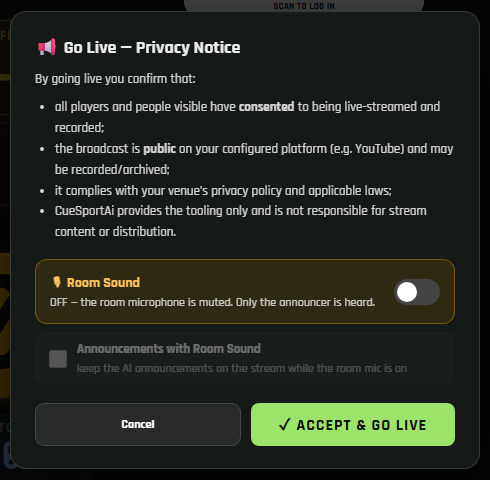
- The privacy notice opens. By accepting, you confirm that:
- everyone visible has agreed to be live-streamed and recorded;
- the broadcast is public on your channel and may be kept as a recording;
- it follows your venue's privacy policy and the law.
- Check the 🎙 Room Sound switch in the notice. It is off every time you go live. Turn it on only if you want the room microphone on air for this stream.
- Press ✓ Accept & Go Live. The status changes to LIVE within a few seconds.
If a player in the match has opted out of live streaming, the box refuses to go live and shows Blocked — player privacy.
Stop
- Press ■ Stop to end the stream at any time.
- When a match ends, the stream stops by itself 5 minutes later. A banner offers Keep streaming for 15, 30 or 60 more minutes, for example for a presentation or the next match. Starting a new match within those 5 minutes keeps the stream going.
If the box has a CueSportAi remote, its play/pause key starts and stops the stream.
5. Choose a camera
The box can switch between up to four cameras while live, without interrupting the stream.
- Go to ⚙ Settings → Streaming → Camera, or open the 🎥 big preview.
- Tap a camera's button. It turns amber with "…" while the new camera starts, then green when it is on air. A network camera can take a few seconds.
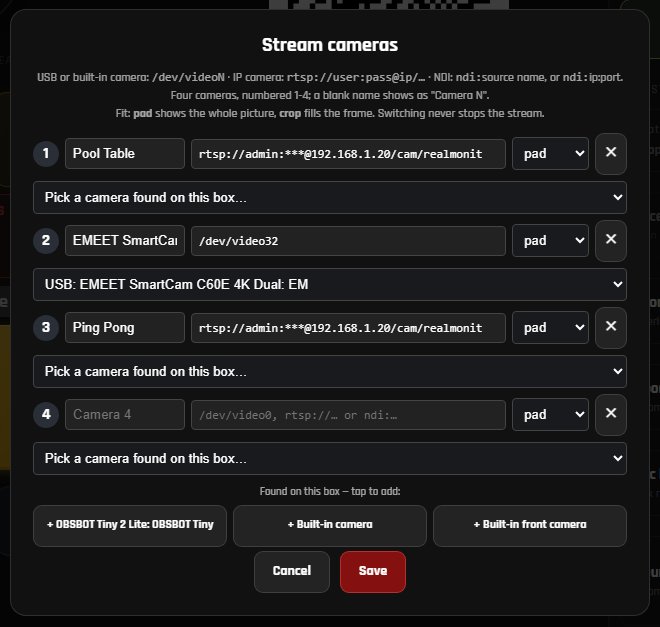
To add, rename or remove cameras, press ⚙ Cameras:
- Each numbered slot (1 to 4) has a name, a source and a fit.
- Pick a camera from Pick a camera found on this box…, or tap one of the + buttons under "Found on this box".
- Choose the fit: pad (whole picture, black bars if needed), crop (fills the frame, trims the edges) or stretch.
- Press Save.
If you save new cameras while live, the box may ask you to Stop and Go Live once. After that, camera changes are live.
If the camera on air has a zoom, a Camera Zoom slider appears under the cameras. It works live.
Camera switching depends on your club's plan. If the box shows 🔒 when you switch, the feature is not in your plan.
6. Sound
The stream always carries sound. Room Sound decides which sound:
| Room Sound | Viewers hear |
|---|---|
| Off (the default every time you go live) | The announcer voice (score calls). The room microphones are muted. |
| On | The room microphones. Anything said near the table is heard. |
To keep the announcer on air while the room mics are on, tick Announcements with Room Sound. It only matters while Room Sound is on.
Commentators (sections 7 and 8) are heard whether Room Sound is on or off.
Microphones and camera sound
| Control | What it does |
|---|---|
| Mic level | The box microphone's volume, live. Shown only on a box with a mic. |
| Sound sources | Mics and camera sound mixed into the stream. Tap a source to mute or unmute it, live. |
| 🎚 Sound | Add a mic or a camera's sound, set its volume, or tie it to a camera. |
In 🎚 Sound, set With camera: … to play a source only while that camera is on air, for example a mic at the far end of the table. Sources play only while Room Sound is on.
Mixing several sound sources depends on your club's plan. Without it, the box plays one source at a time.
7. Phone commentary
A commentator in the club can talk into the stream from their phone, on the club Wi-Fi. (For a commentator somewhere else, see §8 Remote commentator.)
- In ⚙ Settings → Streaming → Phone commentary, press 📱 QR.
- The commentator scans the code, types their name and taps ● Go on air. They are asked for the operator PIN if one is set.
- They should wear headphones if they can hear the room speakers.
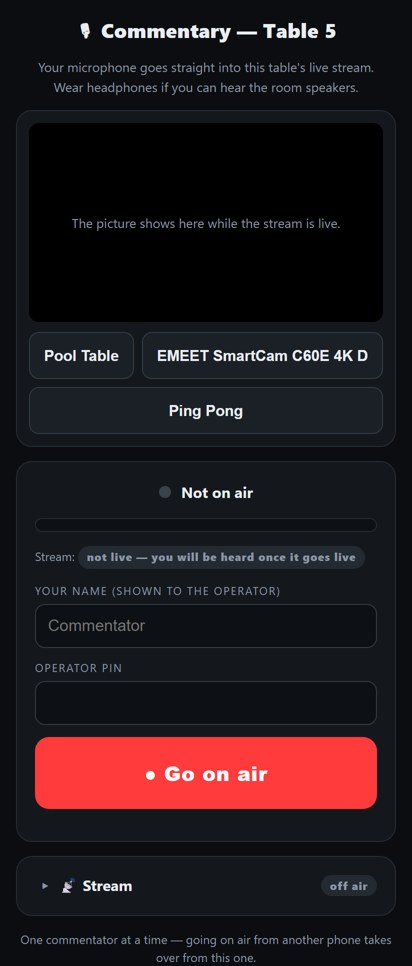
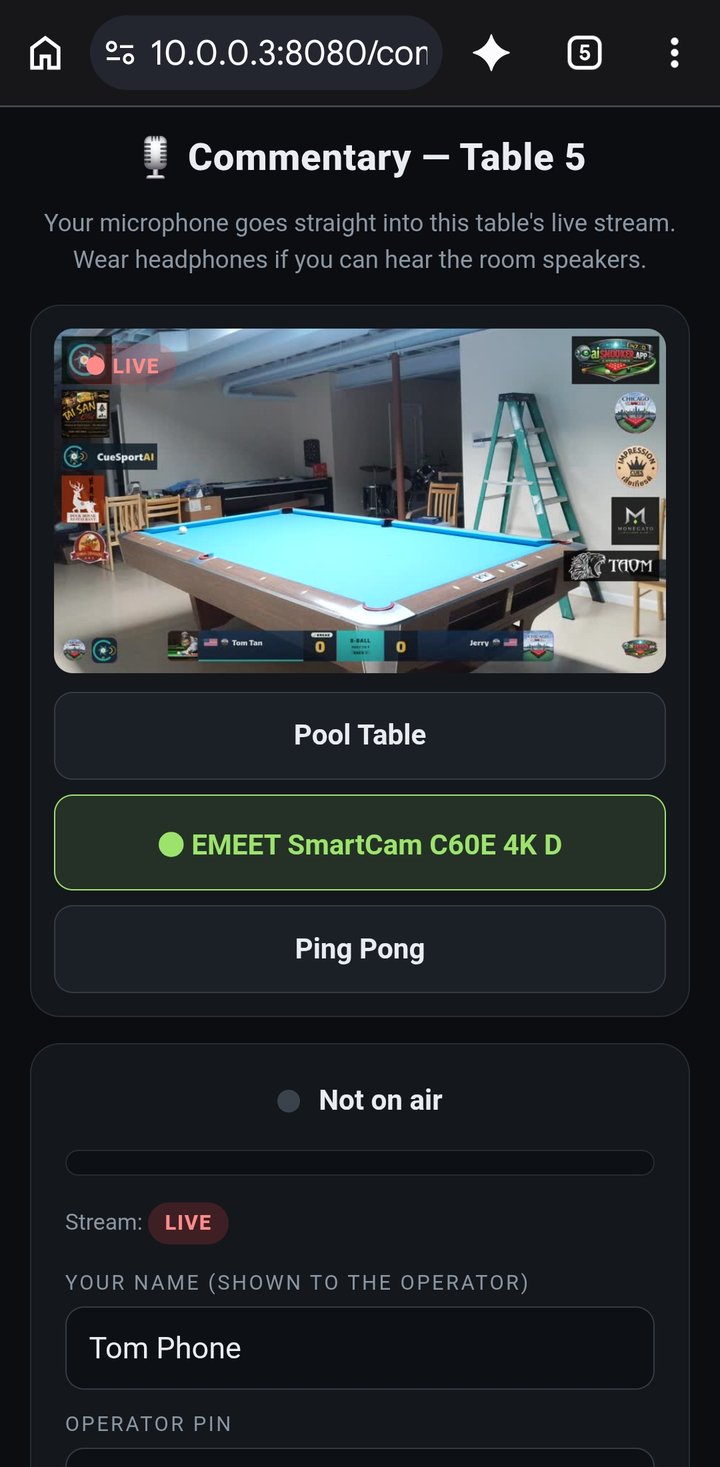
On their phone the commentator can also:
- ✏️ Draw on the stream, and mark the ⚪ Cue ball strike point (shown for 15 seconds);
- switch the stream camera with the camera buttons under the picture;
- show 📷 My picture on the stream: an avatar, the front camera or the back camera;
- 🔇 Mute, or go ■ Off air;
- in the Stream panel at the bottom: start or stop the stream (with the same privacy notice, and the operator PIN if one is set) and set the box microphone level.
An ON AIR badge with their name shows on the stream. To take them off air from the admin page, press ■ Off air. One phone commentator at a time: a second phone that goes on air takes over.
8. Remote commentator
A commentator somewhere else, for example at home, can commentate through the CueSportAi website. They don't need to be on the club Wi-Fi.
- Turn on ⚙ Settings → Streaming → Remote commentator. The row says On — starts with the stream.
- While you are live, the box sends the stream picture to the commentator. Their voice and drawings come back onto the stream.
- Turn it off when they have finished.
The switch only appears on boxes set up for remote commentary.
For the commentator
The club admin adds the commentator once, on the website under Admin → 🎙 Commentators (start typing their name or email and pick them from the list). Then, on a computer, tablet or phone:
- Sign in on the CueSportAi website and open 🎙 Commentary in the menu. It lists the club's matches that are streaming now.
- Press 🎙 Commentate. The table video and the controls open. On a computer or a sideways tablet, the controls are on the right; on an upright phone, they are under the video.
- The microphone starts muted. Press 🎙 Go on air when you are ready (it shows ● ON AIR). Press it again to mute.
| Control | What it does |
|---|---|
| Microphone list | Pick which microphone to use |
| Mic level | How loud your voice goes out (0–300%). Keep the meter mostly green, with peaks in yellow. Remembered on that computer. |
| Auto level | The browser evens out your volume. Untick it to set the level only with the slider. |
| ✏️ Pen / 📏 Line | Draw on the stream in the chosen colour. Drawings fade after a few seconds. For a line, click to start, click for each corner, double-click to finish. 🧹 Clear removes them. |
| Cue ball | Click where the player should strike the cue ball. Viewers see it with a red dot for 15 seconds. Hide takes it off. |
| Stream sound (viewers only) | 🏟 Room sound (the club's microphones), 🔢 Score calls on stream, 🗣 Other voices on stream. These change only what viewers hear; the club's speakers still call the score and fouls (they are muted only on the box admin page). |
| 🎥 Stream camera | On tables with more than one stream camera: switch the camera on air, live, without restarting the stream. |
| PiP | Show a second camera in a small window on the stream, and choose where it sits (top centre, a corner). Only on tables set up for it. |
Stream sound and 🎥 Stream camera appear only when the table's box supports them.
9. Sponsors, logos and stream channels
The club owner sets these on the CueSportAi website, not on the box.
- Sponsor logos: set on your club's sponsors page. The box picks up changes within about 15 minutes. Logos show on the Default scoreboard only. A sponsor with start and end dates shows only between those dates.
- Club logo: comes from your club's profile on the website.
- Stream channels (multistream): the club owner can save up to three channels per table (or a club default), for example YouTube plus another streaming service. The box checks the list each time you press Go Live and sends the stream to all of them. If one channel fails, the others keep going.
If no channels are saved, the box streams to the YouTube channel it was connected to at installation.
Facebook Live on the box is marked Coming soon. Until then, use a stream channel on the website.
10. Settings you may need
| Setting | Where | What it does |
|---|---|---|
| Operator PIN | ⚙ Settings → Player App → Set PIN | Needed to open the admin page from the CueSportAi app, and to go on air with phone commentary. Set one, so that nobody else on the Wi-Fi can go on air. |
| Live view while streaming | ⚙ Settings | Turns the 📺 window on or off. Takes effect at the next Go Live. On by default on a stream box. |
| Language | ⚙ Settings | The language of the admin page and the announcer. |
11. YouTube recordings, breaks and nice shots
- The live stream is normally kept as a recording on the channel it went to.
- Break and nice-shot videos are cut by CueSportAi AI scoring boxes from their overhead camera. A stream box has no AI, so it does not make these clips on its own.
12. When something goes wrong
No picture, or a black picture
- Open 🎥 and check which camera is green. Tap another camera to see if it works.
- If the Camera row says ⚠ Camera switcher is not running or ⚠ The stream is not using the switcher — open ⚙ Cameras and Save, open ⚙ Cameras and press Save. Then press Stop and Go Live.
- Check the camera's cable (USB camera), or its power and network (IP camera).
- If a USB camera is unplugged while live, the stream restarts by itself when the camera comes back. If it is away for 5 minutes, the stream stops.
- Still black: restart the box (hold the power button 1.5 s → Restart) and go live again.
No sound, or the wrong sound
- Check Room Sound. Off = only the announcer. On = only the room mics (plus the announcer if Announcements with Room Sound is ticked).
- With Room Sound on, check Sound sources: a source marked 🔇 is muted, and a source tied to a camera plays only while that camera is on air.
- Check that Mic level is not at 0.
- If the Phone commentary row says ⚠ This stream carries no commentary audio, commentators cannot be heard. Contact CueSportAi support.
The stream stopped by itself
| Reason | What to do |
|---|---|
| The match ended 5 minutes ago | Press Go Live again. Next time, use Keep streaming. |
| The box saw no activity for a long time | Press Go Live again. |
| A camera was disconnected for 5 minutes | Reconnect it, then press Go Live. |
| The internet dropped | Check the connection, then press Go Live. |
Go Live does nothing, or shows an error
| Message | What to do |
|---|---|
| Blocked — player privacy | A player in the match has opted out of streaming. |
| A message about a stream key or YouTube | The box has no channel to stream to. Ask the club owner to add a stream channel on the website, or contact CueSportAi support. |
| The stream is LIVE — the camera is in use (after pressing Preview) | Normal while live. Use 📺 to see what is on air. |
The camera does not switch
- Wait a few seconds. A network camera can take up to about 5 seconds.
- If the button shows an error, that camera is not sending a picture. Check its power and cable.
- 🔒 means camera switching is not in your club's plan.
The stream on YouTube stutters or lags
- Use 720p instead of 1080p (stop the stream first).
- Use a network cable instead of Wi-Fi if you can.
- Pause other large uploads on the club's internet.
Still stuck
Contact CueSportAi support. Tell them the table name, the time it happened and what the screen showed.