CueSportAi AI box — user guide
The AI box watches the table through an overhead camera and scores the match by itself: pots, fouls, misses, breaks and frames. The operator screen is there to start matches, fix the odd call and change settings. Players see the score on the player display (and on the stream, if the table is live).
This guide is for whoever runs the table: club staff, referees and players. Setting up a new box is covered in the installation guides.
Screens on the box
| Screen | Who uses it | Where |
|---|---|---|
| Operator screen | staff / referee — scoring, matches, settings | the box's touchscreen, or any phone, tablet or PC on the club Wi-Fi at the address shown top right |
| Player display | players and spectators | the TV by the table |
| Stream overlay | viewers online | added to the live stream automatically |
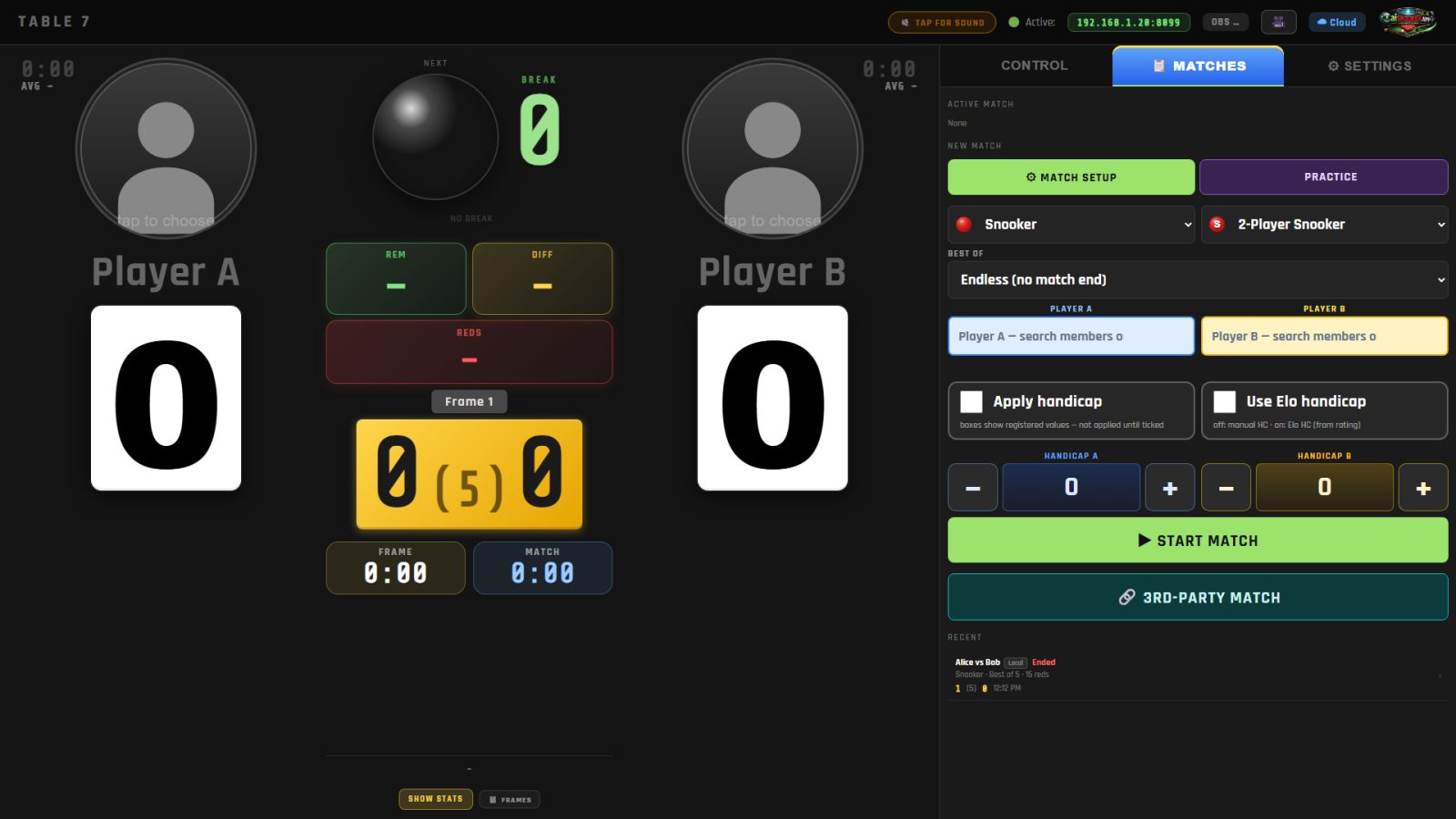
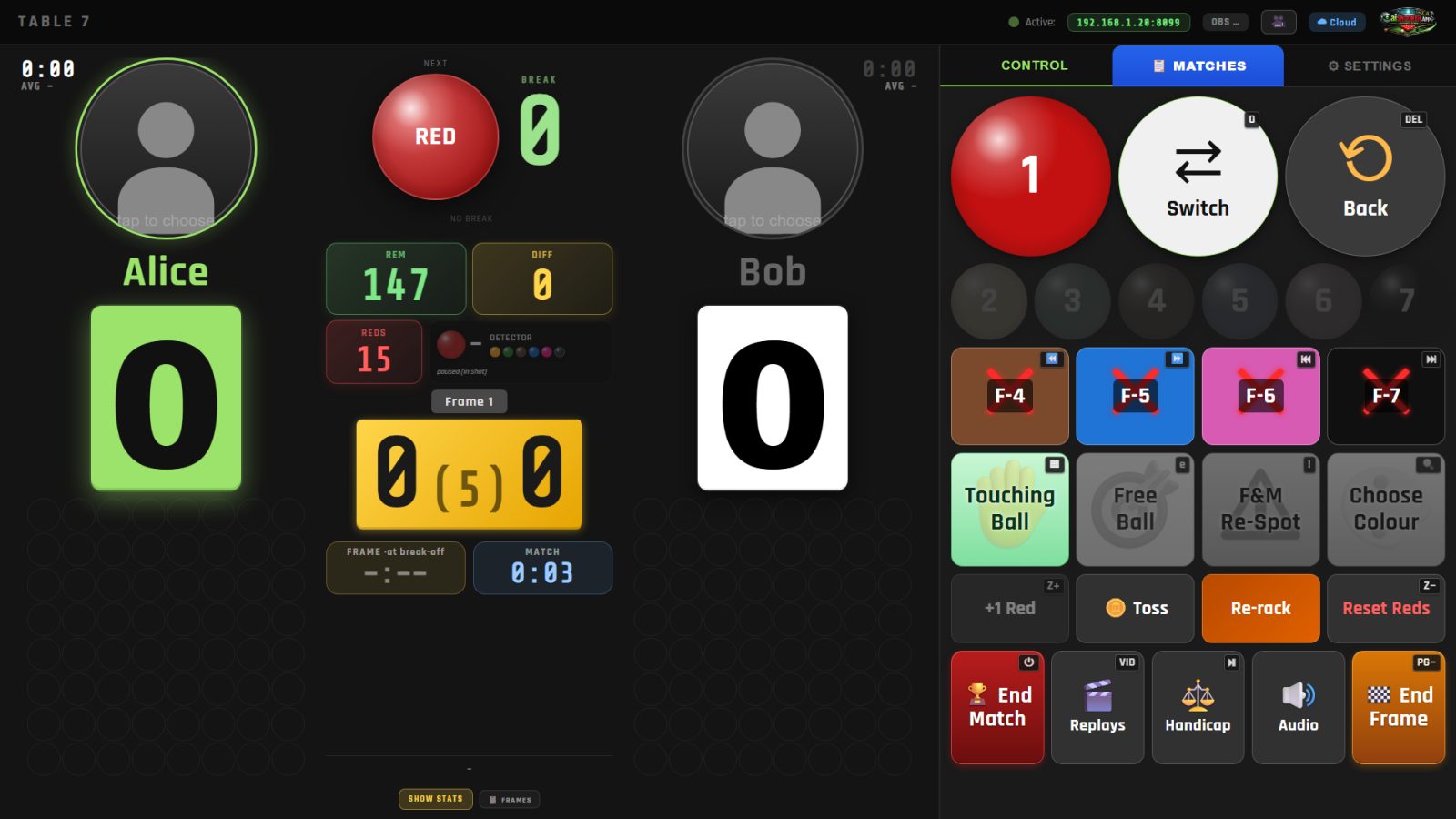
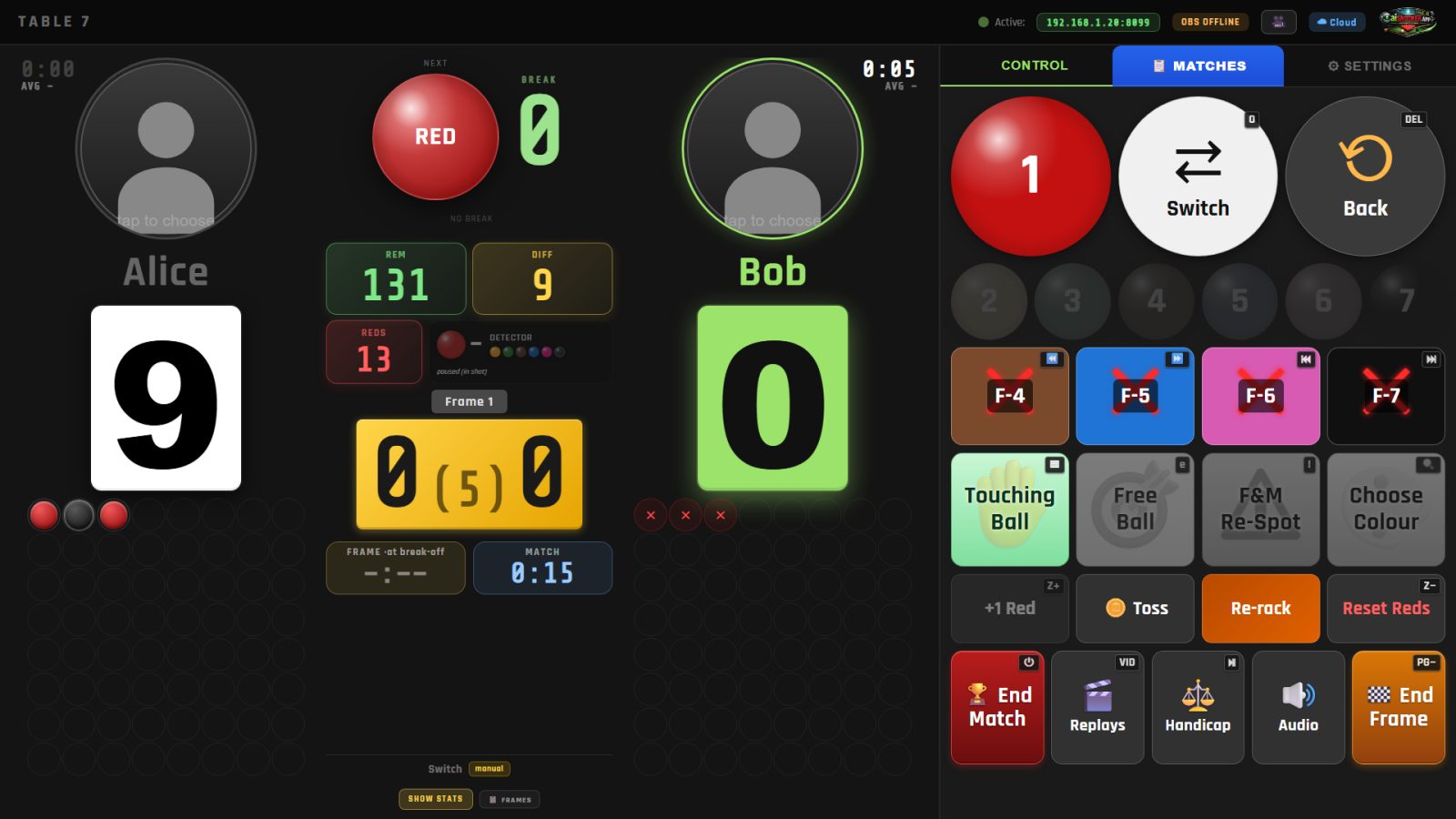
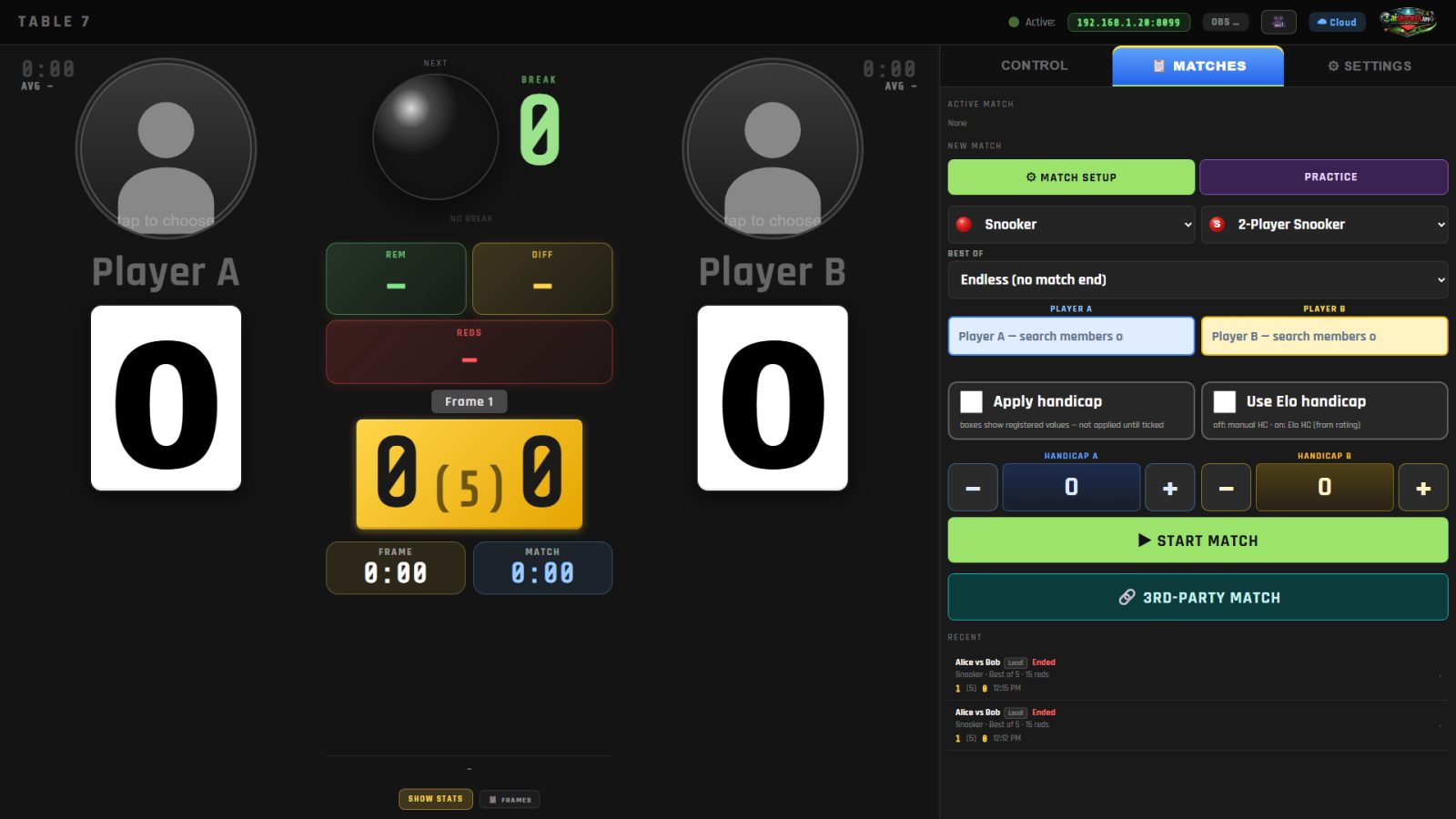
The operator screen has the scoreboard on the left and three tabs on the right: Control (scoring), Matches (new and recent matches) and Settings.
1. Starting a match
- Open the Matches tab.
- Choose the sport and game: Snooker or Pool on the left; 2-Player Snooker, Multi-Player Snooker, Century, Polo or Team Doubles (2v2) on the right (for pool: 8-Ball, 9-Ball, 10-Ball or Chinese 8-Ball).
- Choose Best of — or Endless for frames with no match end.
- Type each player's name, or start typing and pick them from the club's members. Guests can just have a name typed in.
- Tick Apply handicap only if you want registered handicaps applied (Use Elo handicap takes it from the players' ratings instead).
- Press Start Match.
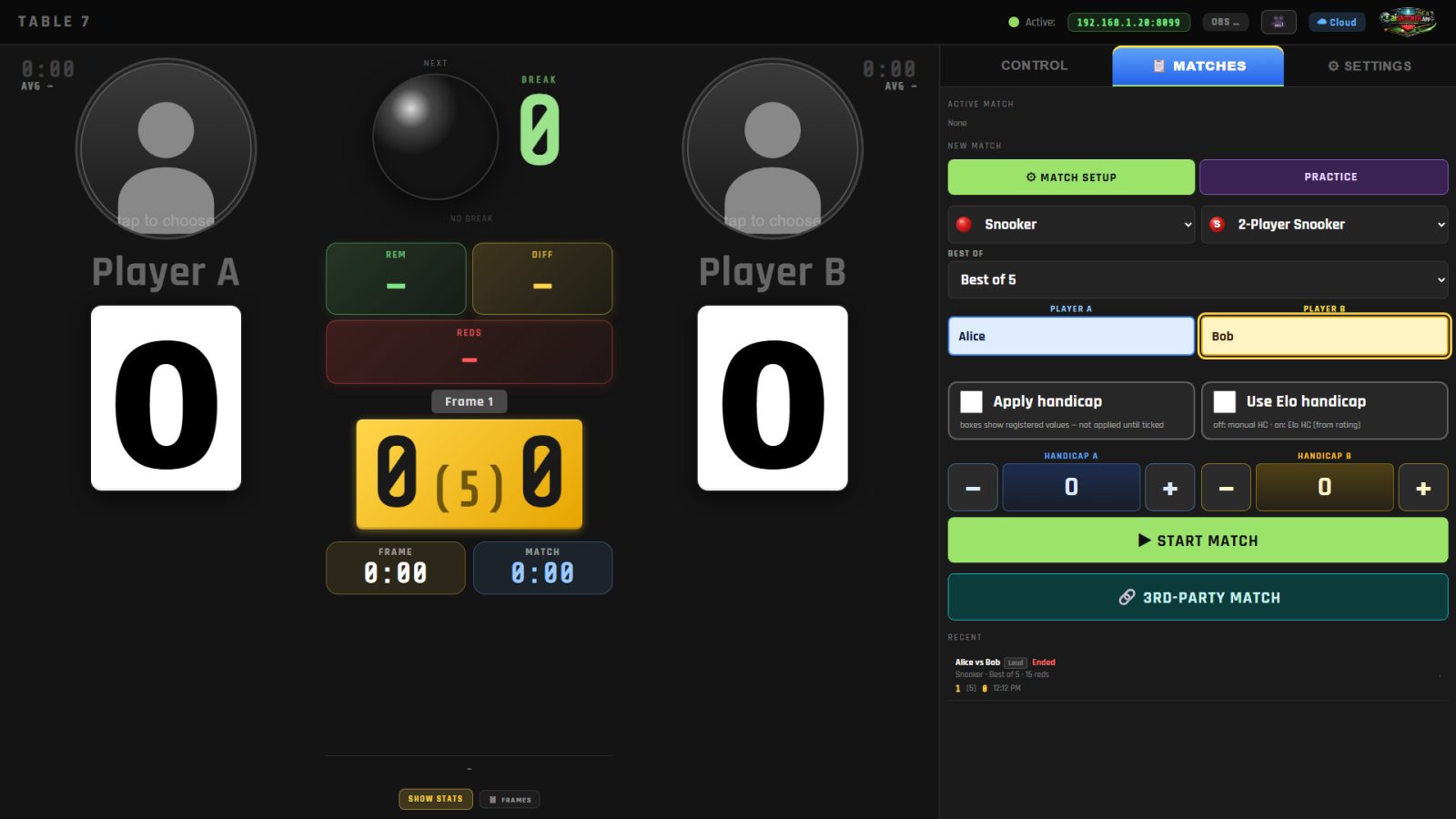
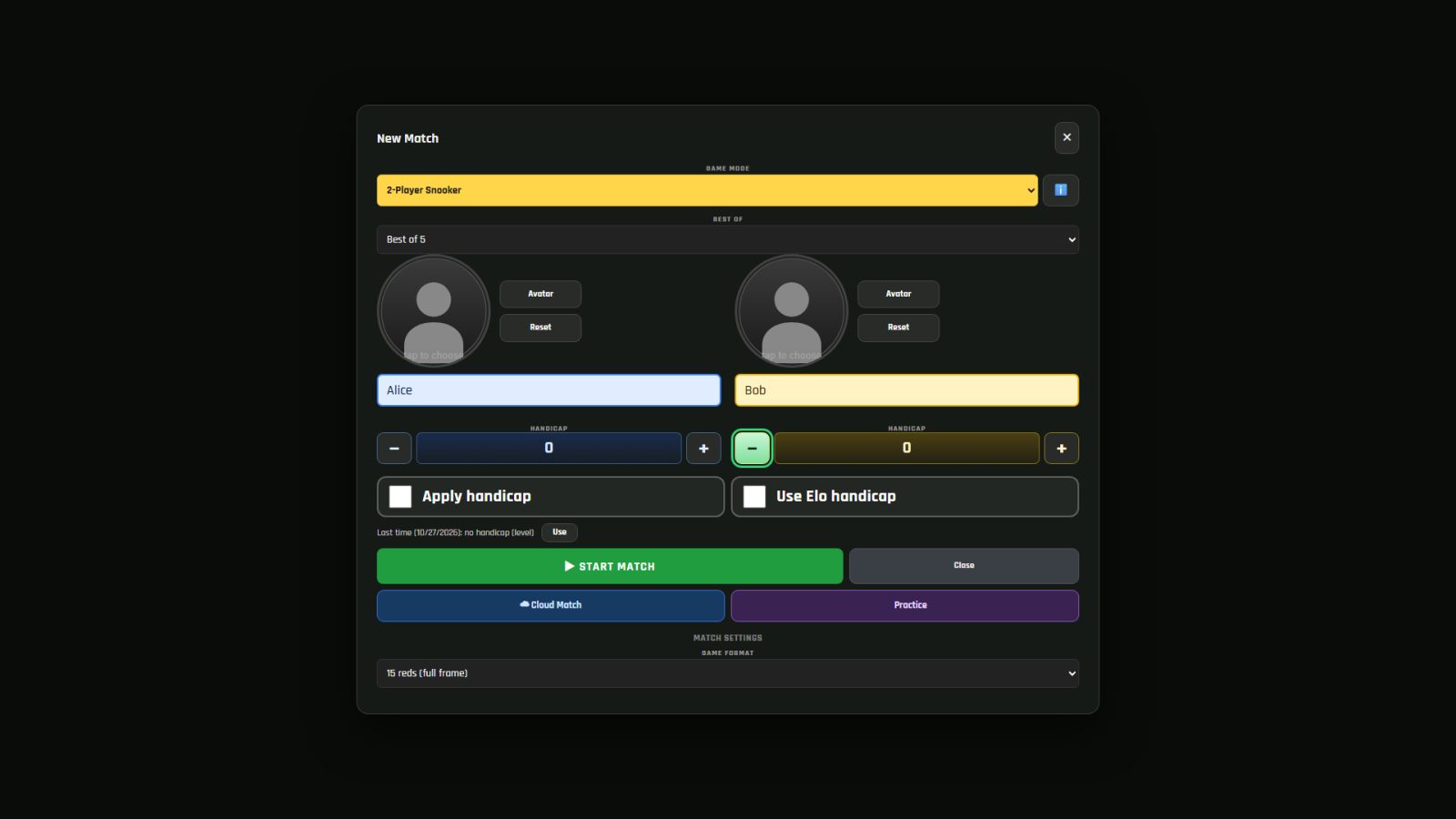
Match Setup has every option in one place: game mode, best of, the game format (15 reds down to 1 red, or a timed Shootout), a shot timer and handicaps. 3rd-Party Match follows a match scored on Digital Pool.
Players signing in
Players can sign in to a match with their phone so the result counts on their CueSportAi profile and rating. Tap the QR on a player card (or Sign in A / Sign in B on the Matches tab) and the player scans it.
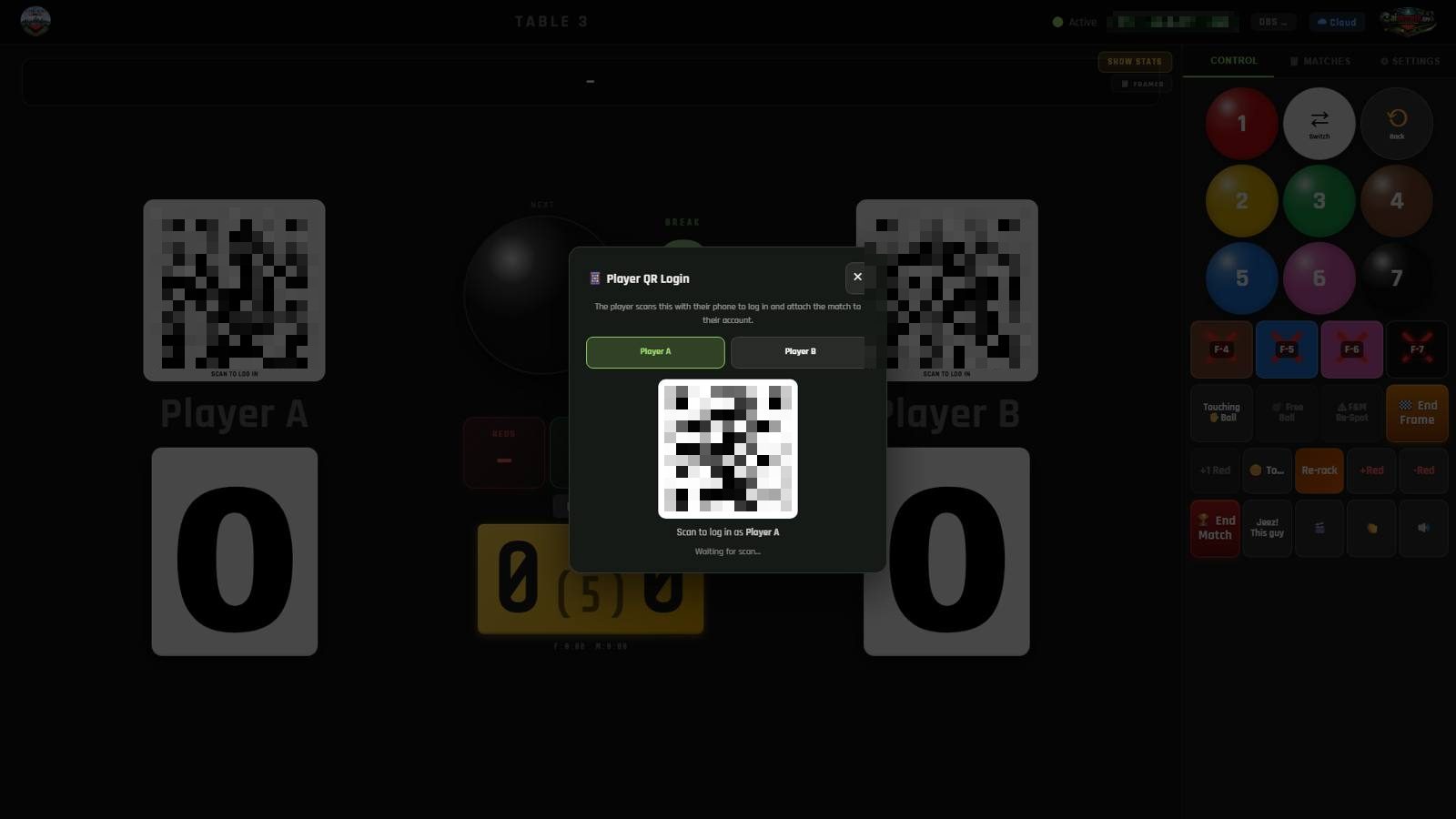
Until both players have signed in (or staff enter the club's Staff PIN) a match shows as Unrated. A club that doesn't want sign-in on a table can turn it off — see Settings below.
More about accounts, signing in at a table and unrated matches: account guide.
Practice
Practice starts a solo session. Pick a routine:
| Routine | What it does |
|---|---|
| Free Form | no rules — every pot counts, the balls go back as you like |
| Colours Clearance | pot the six colours in order; clearances are counted and timed |
| Line-up | clear the reds red-colour; points per rack and best line-up are recorded |
| Long Pots | every shot is an attempt; success rate and longest pot are tracked |
| Full Frame | a complete frame solo under normal rules |
Tap the ℹ️ next to any mode to read (or hear) its rules.
2. Playing
After Start Match the box waits for the break-off. Set up the rack, choose who breaks (Switch Breaker or the coin toss), then tap Continue. Scoring is paused until the rack is ready.
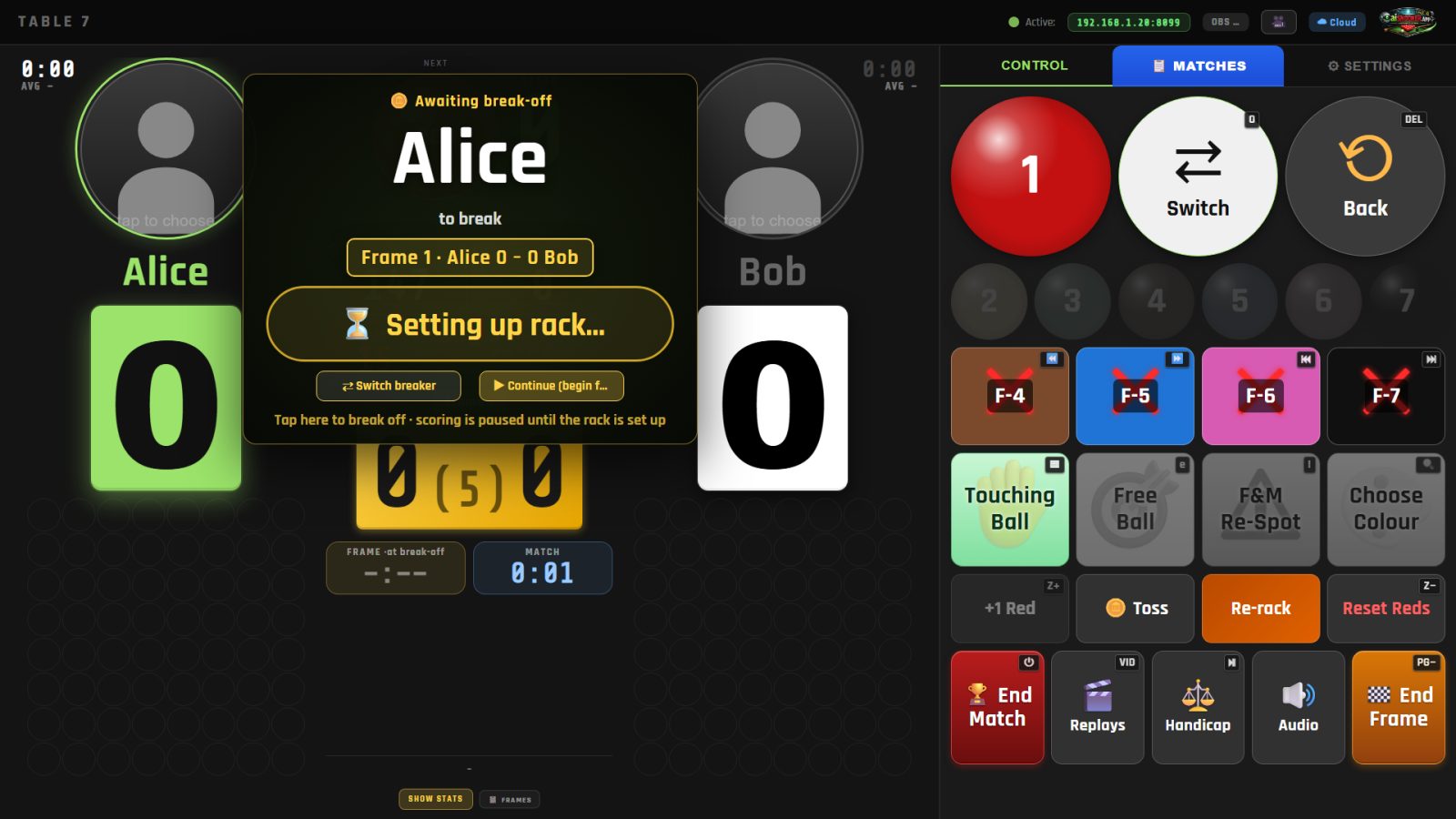
From then on the players just play. The active player is highlighted, the ball on shows in the centre, and the box calls pots, fouls and misses out loud.
When to touch the screen
The box gets the vast majority of calls right. When it doesn't, correct it straight away — every button works during play:
| Button | Use it when |
|---|---|
| 1–7 (ball buttons) | a pot was missed — score it by hand (shows as manual) |
| Switch | the turn should change (e.g. after a safety the camera couldn't read) |
| Back | a call was wrong — removes the last event, on the scoreboard and in the detector |
| F-4 … F-7 | enter a foul of that value |
| Touching Ball, Free Ball, F&M Re-Spot | the special cases |
| Choose Colour | nominate the colour after a red |
| +1 Red / –Red / Reset Reds / Re-rack | the red count is off, or a re-rack |
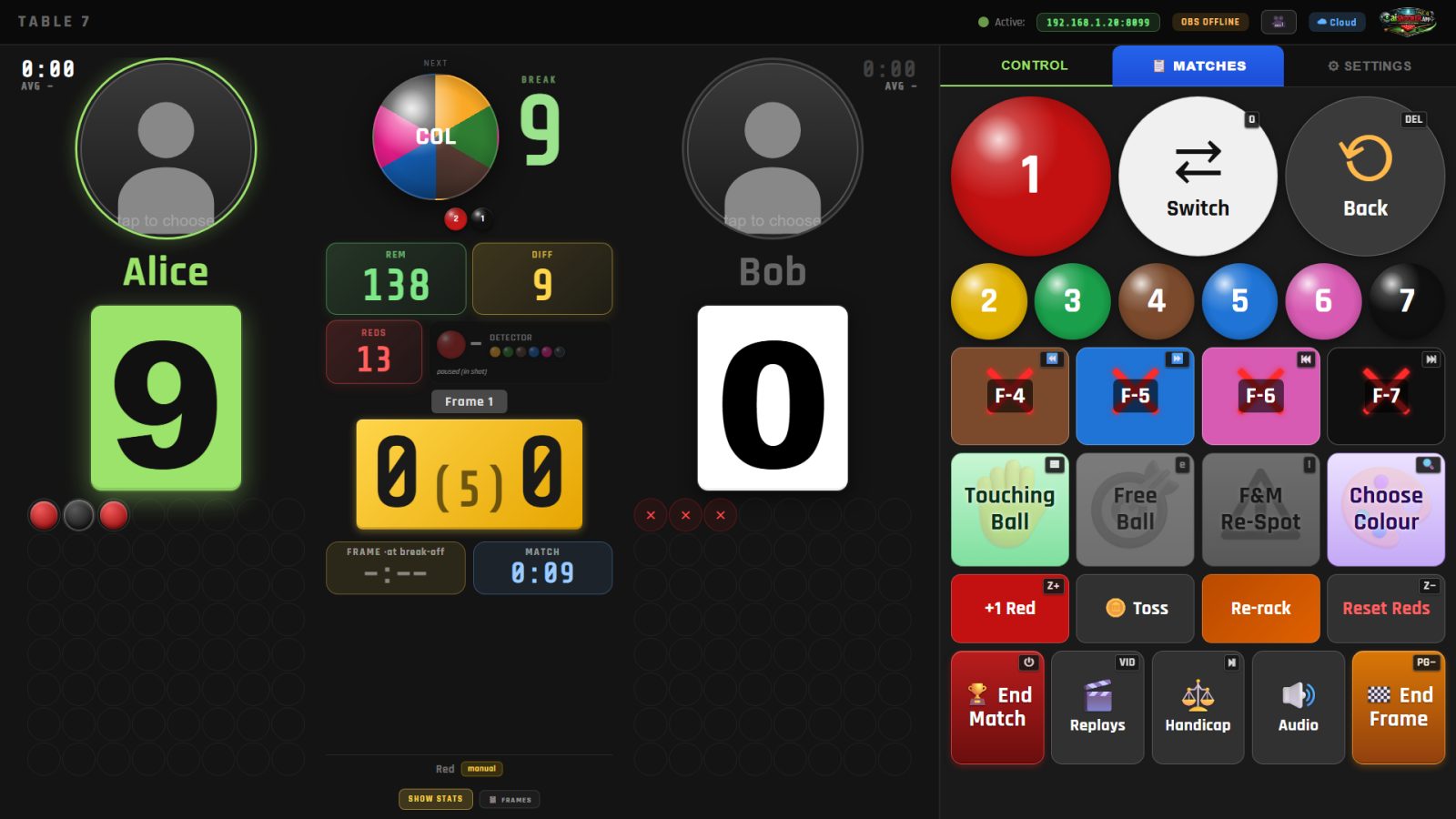
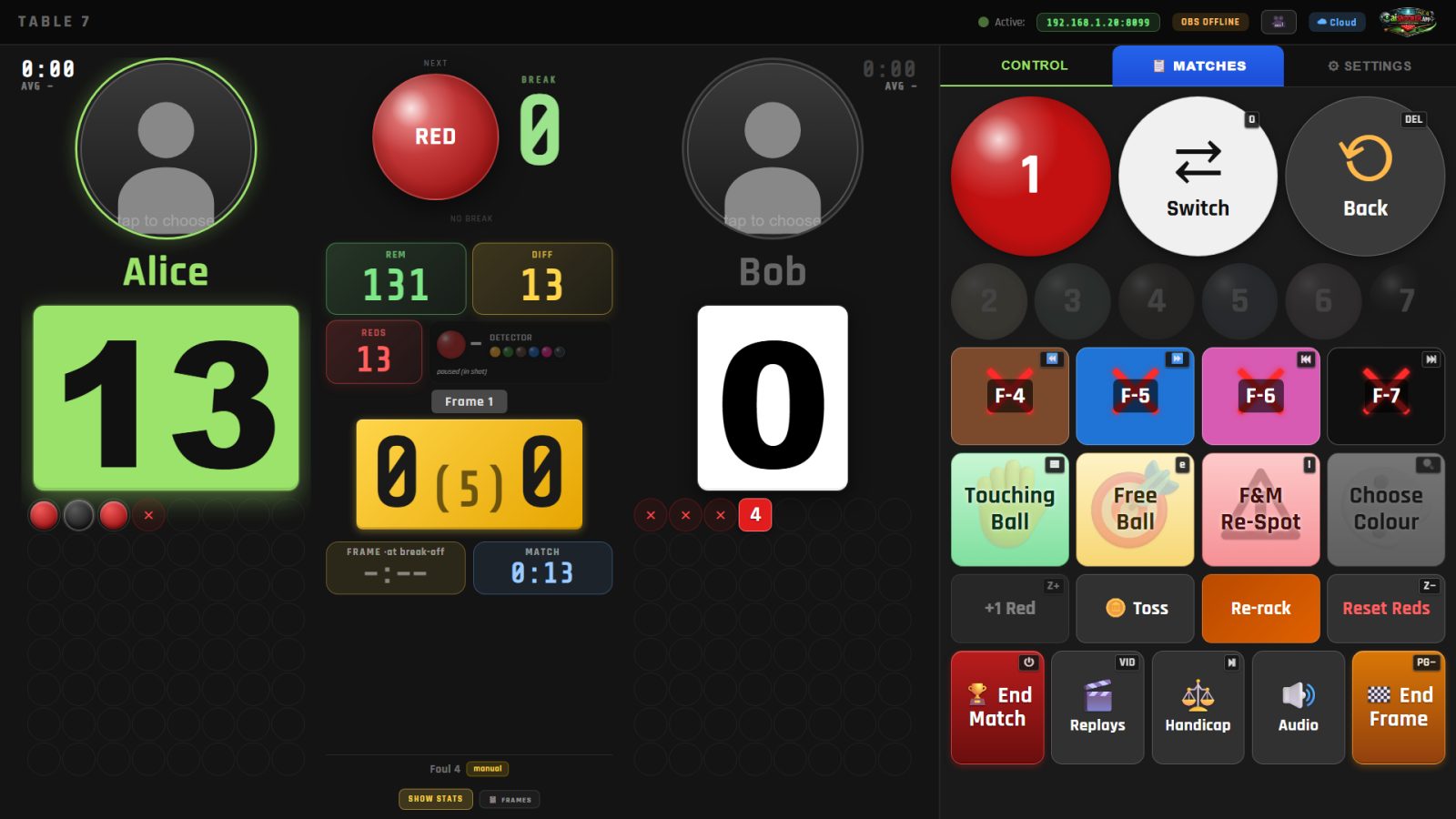
Back is the safe way to fix anything: it puts the score, the turn and the red count back exactly as they were.
Respotting colours
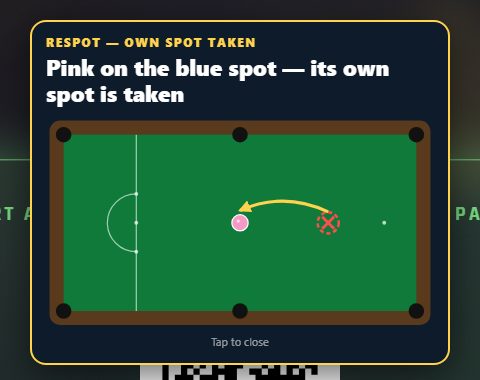
When a colour is potted and has to come back, the box tells you where. If its own spot is taken, it says (and shows on the screens) which spot it goes on instead, with a drawing of the table. The card closes by itself once the box sees the ball back on the table.
Statistics
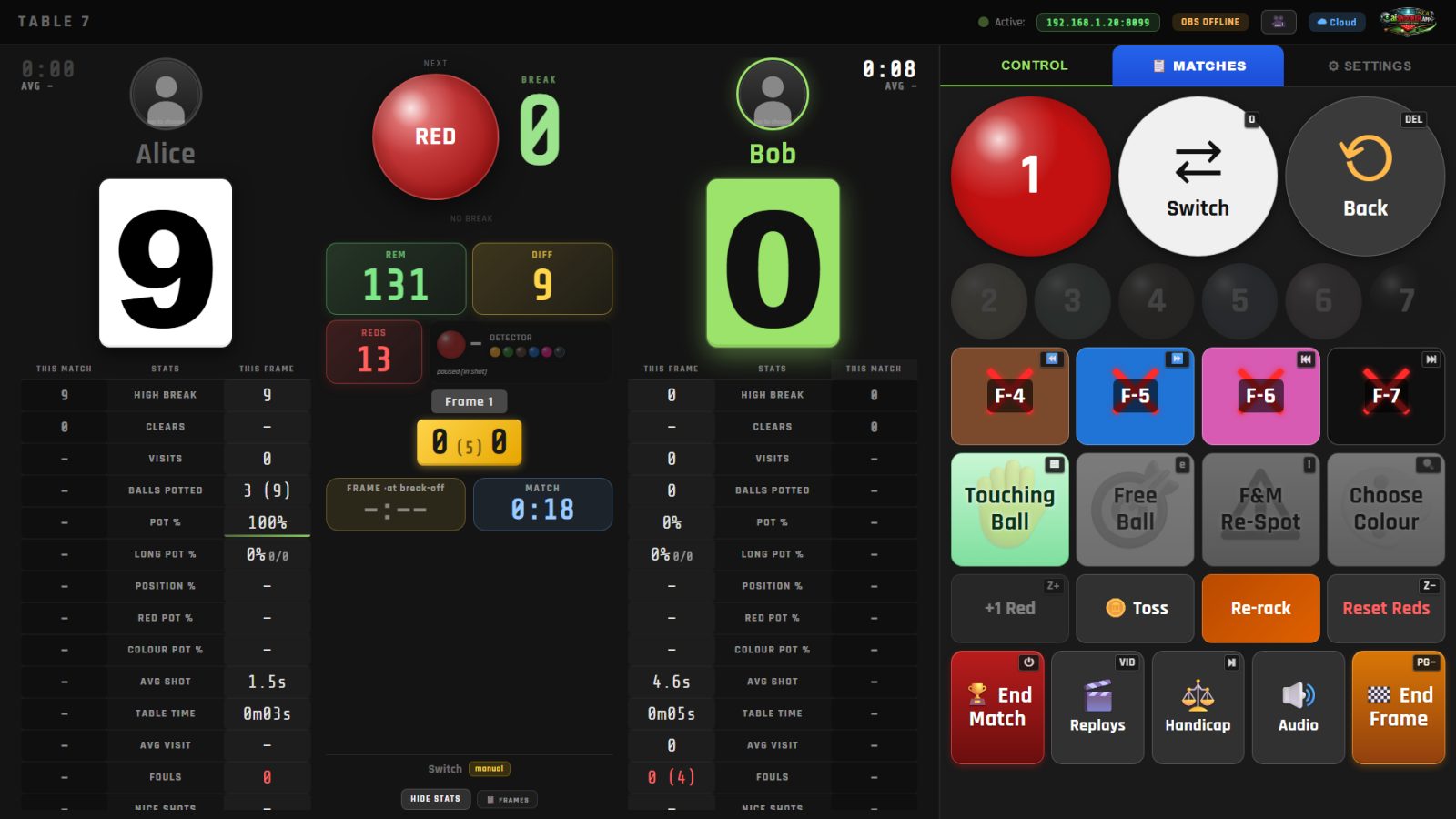
Show Stats opens frame and match statistics for both players: high break, pots, pot %, long pots, position %, fouls, time at the table and more. Frames shows the frame-by-frame history.
Ending
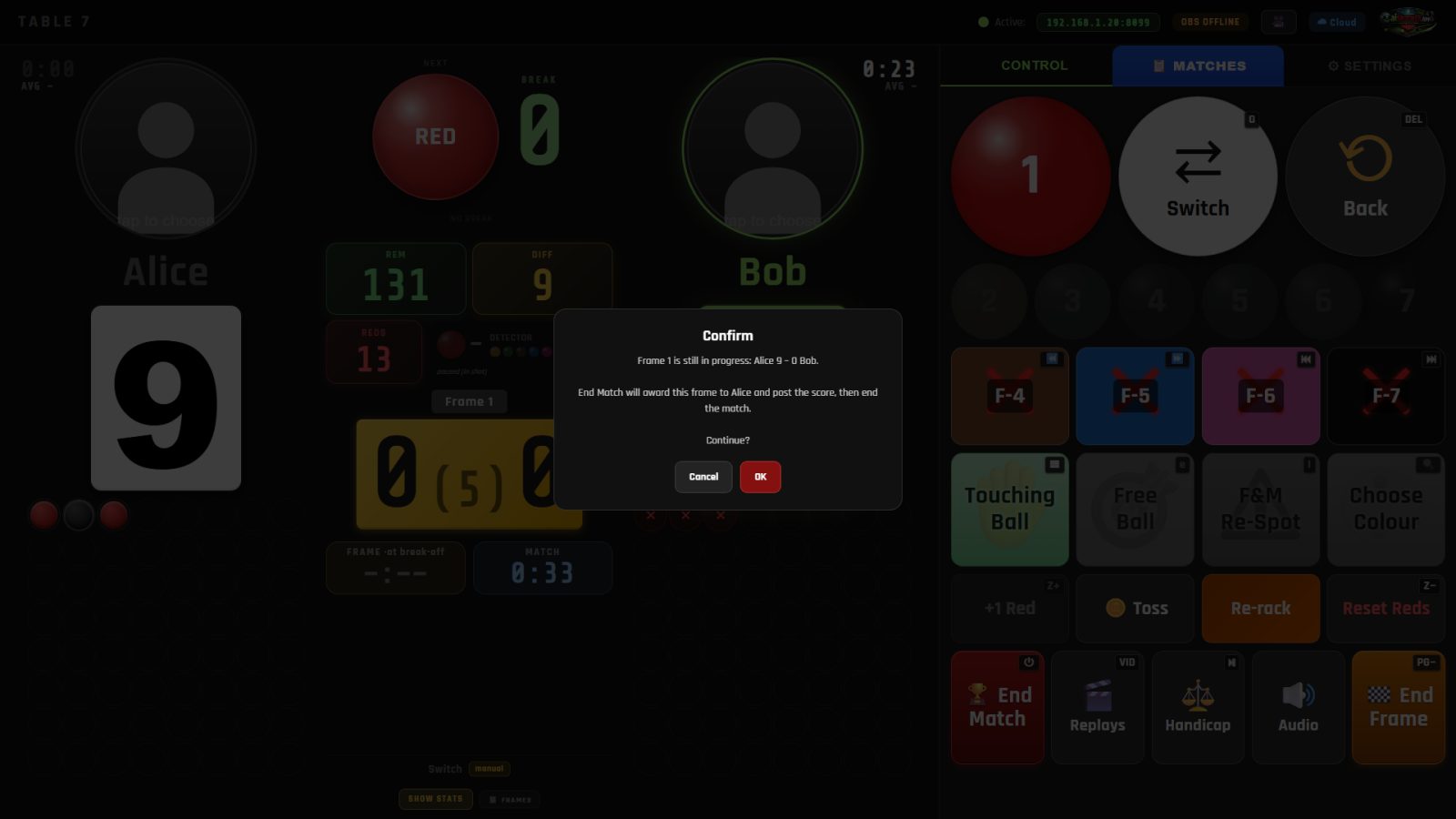
End Frame closes the current frame; End Match finishes the match. The box explains what will happen first (for example who is awarded a frame still in play), then posts the result.
Finished matches move to Recent on the Matches tab (marked Cloud when they reached the CueSportAi website). Tap one to reopen its statistics.
3. Special situations — what the box does, and why
The camera sees balls move; it can't see a hand, a cue placed on a ball, or what a player intends. These situations are where that matters, so each one has a rule or a button.
Break-off: the box waits for the rack
What happens. After Start Match or End Frame the box shows Awaiting break-off and scores nothing while the balls are being racked. It starts the frame when the rack is set up (reds in the triangle, colours on their spots) and the white is struck into the pack — or when you tap Continue.
Why. Between frames people roll balls about, practise a shot or two and set the triangle. If the box scored that, the frame would start with fouls and pots that never happened. It only accepts a break-off once there's a real rack (at least 10 reds for a 15-red game; fewer for shorter formats; colours only for Century).
A soft break-off that barely moves the pack still counts as hitting a red — in a tight pack the struck red can move only a few millimetres, too little to see.
What you do. If the frame doesn't start by itself (a short-red format, a rack the camera can't see well), tap Continue. If knock-about was scored by mistake, use Back, or Re-rack to start the frame again.
Ball in hand after a scratch (in-off)
What happens. When the white goes in a pocket, it's a foul and the next player has the white in hand. The player can pick it up and place it — and move it about the D as much as they like. The box ignores all of that. The next shot only starts when the white hits another ball.
Why. Placing the white by hand moves it, and to the camera a white pushed by a hand looks the same as a white pushed by a cue. If the box judged every movement, lining up the white would be called as a shot that hit nothing — a false foul. The first contact with another ball is the one moment that is certainly a real shot.
What you do. Nothing usually. But because of this rule, a shot played from hand that misses every ball isn't seen as a shot: enter that foul yourself (F-4 … F-7) and Switch if needed.
Touching ball
What happens. When the white comes to rest touching a ball, the player must play away from it without moving it. Tap Touching Ball (remote key 8) and pick the ball the white is touching. The box then treats that ball as already hit for the next shot.
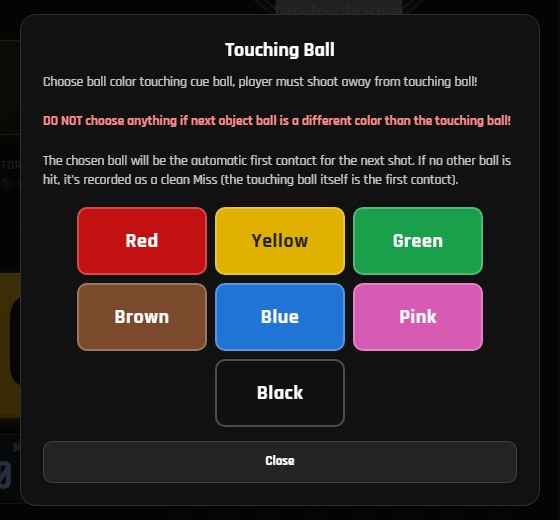
Why. Playing away from a touching ball means the white moves without striking anything. Without the nomination the box would see "hit nothing" and call a foul. By the rules a touching ball that is on counts as the ball hit, so playing away from it is legal.
Only use it when the touching ball is a ball on (e.g. a red when on a red, or the nominated colour). If the white is touching a ball that is not on, don't nominate anything: the player must play away and hit a ball on as usual, and the box judges that shot normally. Nominating a ball that isn't on makes the next shot a foul.
Don't pick a ball that the white isn't really touching. To clear a mistake, open Touching Ball again and tap Cancel nomination; Close shuts the choice without changing anything.
Free ball
What happens. After a foul that leaves the next player snookered (they can't hit both edges of any ball on in a straight line), the box announces the foul, then free ball, and opens the Free Ball choice. Tap the ball the player nominates, or Play the ball on (no free ball) if they don't take one. The Free Ball button opens the same choice by hand (remote key 9).
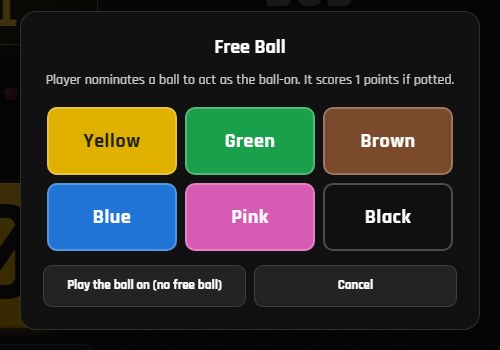
How it scores. The nominated ball counts as the ball on for that shot, at the value of the ball on (as a red in the reds; as the colour due in the colours). No points are given until it's potted. The real ball on is still legal — hitting or potting it is not a foul.
Why it's a choice. Whether a player is snookered depends on edges of balls by a few millimetres, and the referee decides. The box offers it when its measurement says snookered; you can still open or cancel it.
Foul and miss (F&M Re-Spot)
What happens. After any foul, the player who was fouled can ask for the balls to go back and the fouler to play again. Tap F&M Re-Spot:
- The turn goes back to the player who fouled (no extra foul is added).
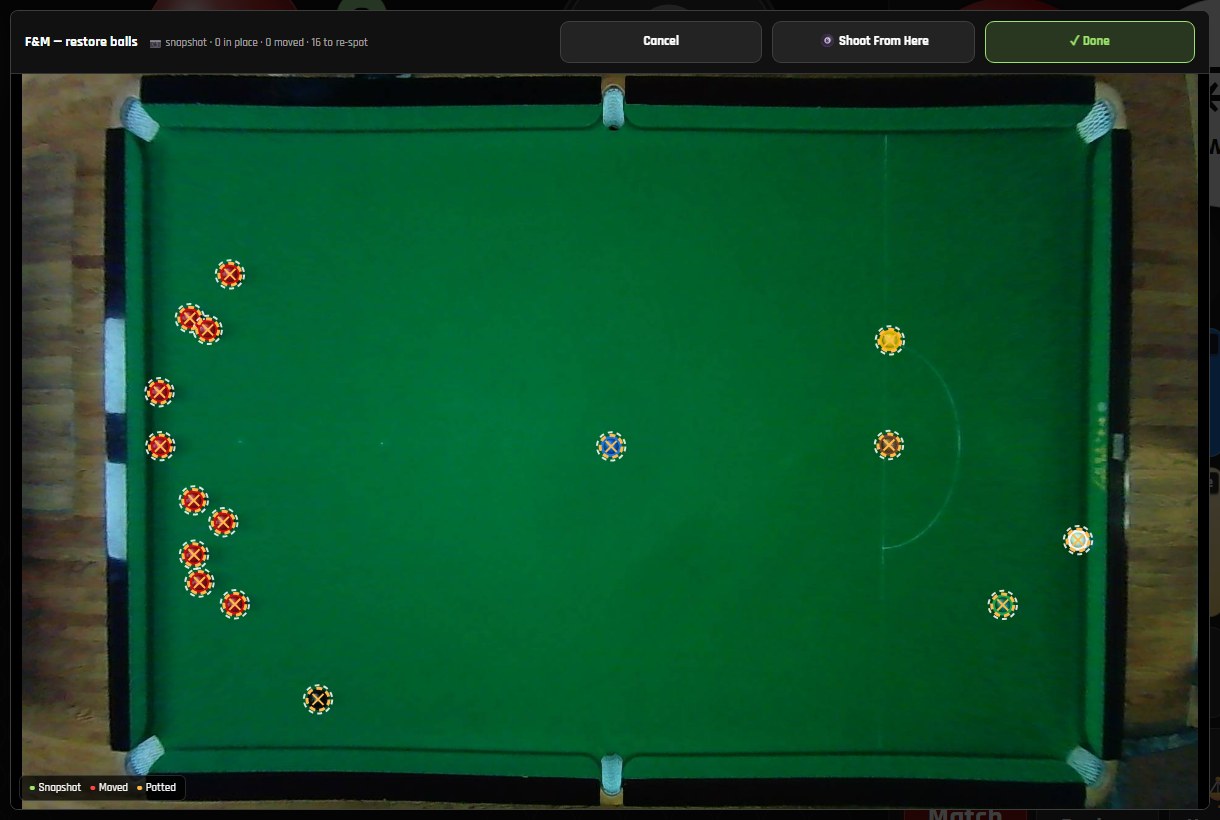
- The re-spot screen shows where the balls were before the foul.
- Put the balls back to match it. Each ball is marked where it was, and the top
line counts how many are in place, moved and to re-spot. Tap the
picture to zoom in. Press ✓ Done when the balls are back.
- Shoot From Here instead: the fouler plays again from where the balls are now (the fouled player may choose this), and a later foul and miss goes back to this position.
- Cancel if you opened it by mistake: the table goes back to the fouled player and F&M Re-Spot stays available.
- The box ignores ball movement while the balls are being replaced and starts scoring again when the white is struck.
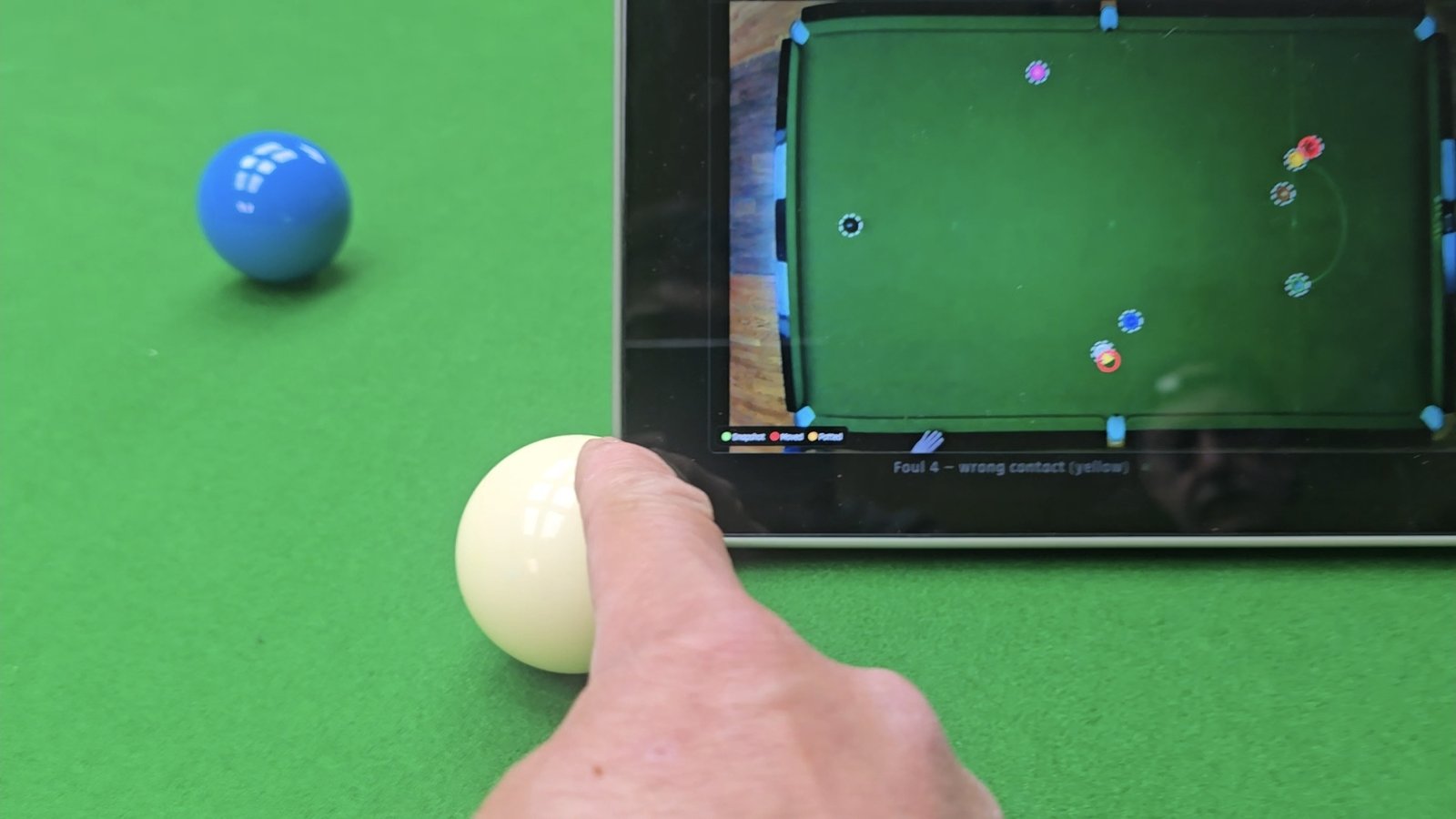
It can be used after any foul, again after a repeated foul, and not once snookers are required. It goes away after a legal shot or a switch. Repeated fouls in a foul-and-miss series are added up but not re-announced each time.
Why it's a button. Whether a foul is also a miss is the referee's judgement (did the player make a good enough attempt?), and the choice to replace the balls is the fouled player's. The box never decides it.
Nominating a colour
What happens. After potting a red, the player is on any colour. Usually you don't need to do anything — the box credits whichever colour is potted. Use Choose Colour (or the box's own prompt) to name the colour before the shot when it matters:
- the player is trying to escape a snooker on the colours, or
- the colours are close together and the player wants it clear which one they're playing.
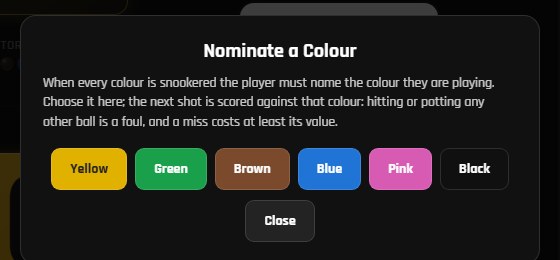
When every colour is snookered after a red, the box asks by itself and says so out loud.
Why. The rules judge the shot by the nominated colour: hitting a different colour first is a foul. The box can't read the player's mind, so without a nomination it judges by the colour that was hit first. To clear a nomination, open Choose Colour again and tap Cancel nomination.
Respots and re-racks
- Colours go back to their own spot; if it's taken, the box says (and shows) which spot to use. The card closes once the box sees the ball back on the table.
- Re-rack restarts the current frame (e.g. a stalemate or a re-rack agreed by the players). Reset Reds sets the red count if it's wrong.
- A ball that jumps off the table: put it back where the rules say and correct the score with the buttons.
When to override the box
The referee's decision is final. Whenever the box and the referee disagree, use Back and enter the right call — the box learns nothing wrong from it, and the corrections help CueSportAi improve the scoring.
4. The player display
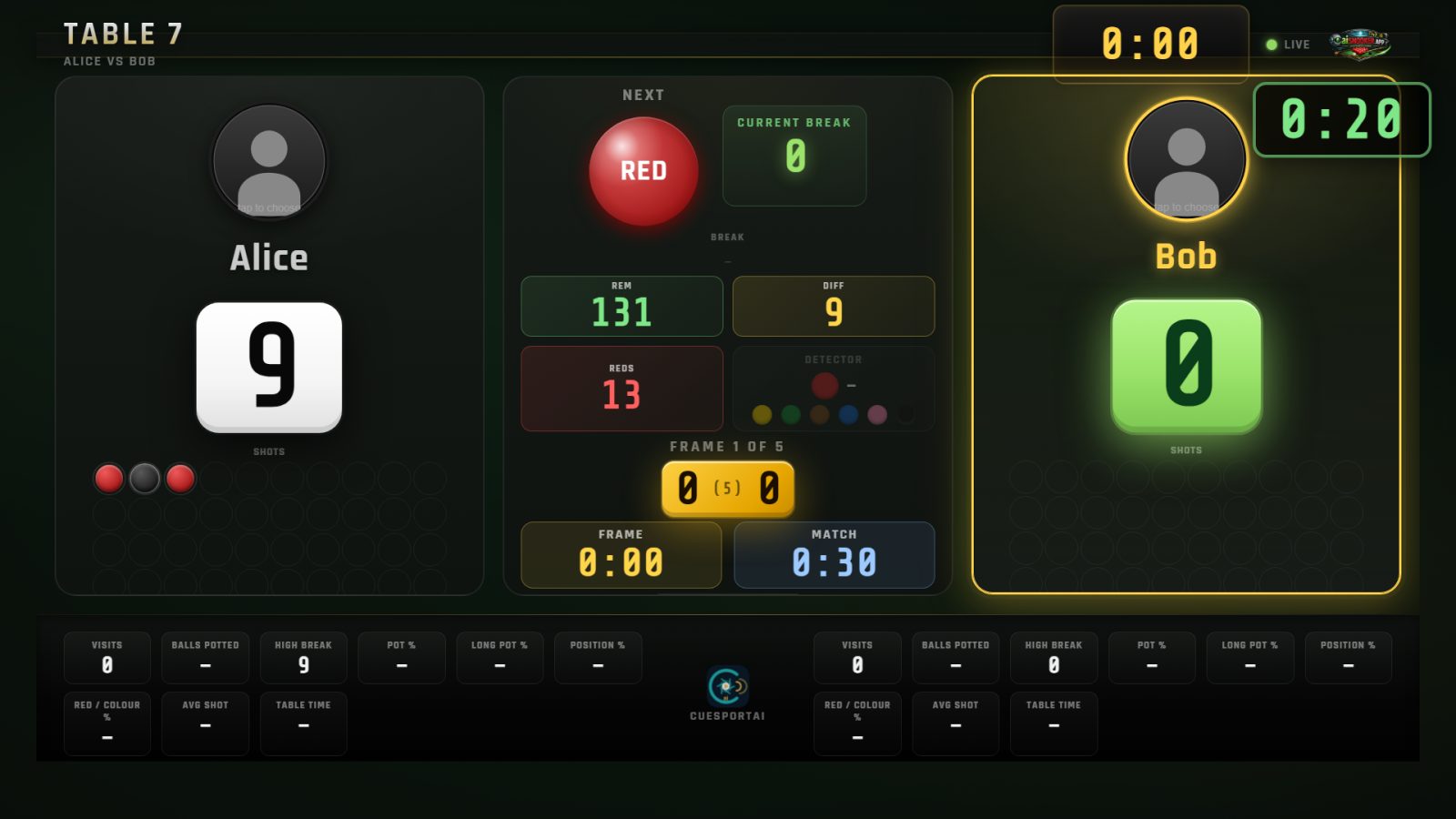
The TV by the table shows the same scoreboard for the players: scores, the ball on, the current break, the frame and match clocks and each player's statistics. Between matches it shows the table's QR code. It needs no operator.
5. Go live and commentary
The AI box can stream its table live, with the scoreboard on the picture. It needs:
- a stream camera. The overhead AI camera only scores; the stream uses its own camera, fitted when the box was installed;
- streaming included in the box's subscription;
- a stream channel (for example the club's YouTube channel), which the club owner sets on the CueSportAi website.
Start the stream
Everything is in Settings → Streaming.
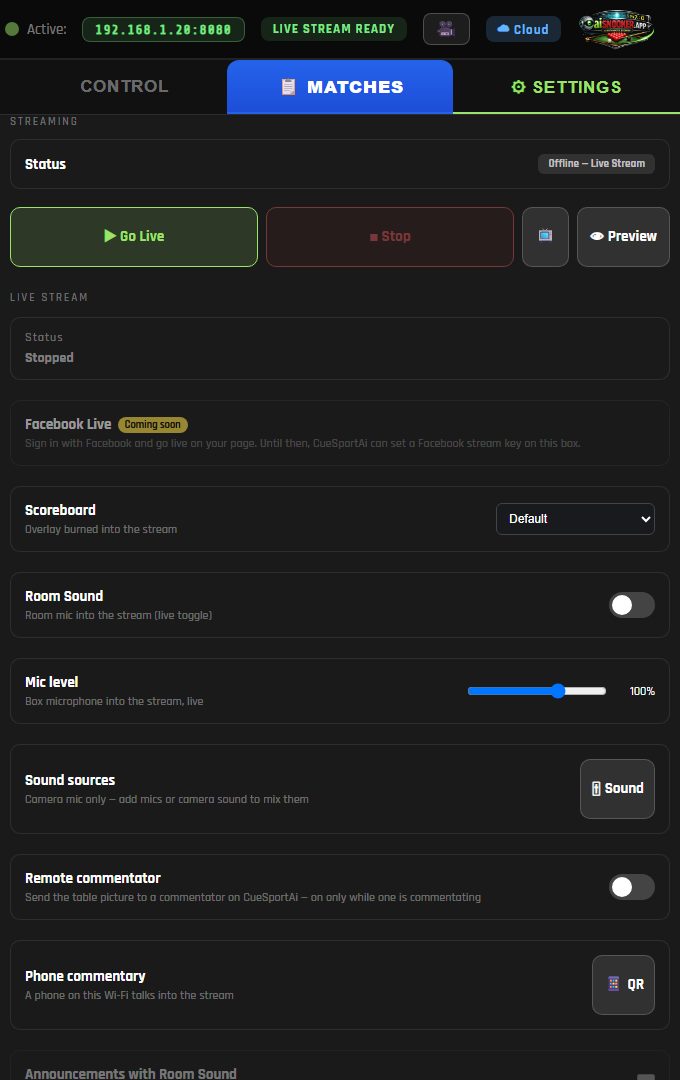
- Press 👁 Preview to see exactly what the stream will send, without publishing anything. Check the picture and choose the Scoreboard style. On the preview you can also choose 720p (about 3 Mbit/s, safe on Wi-Fi) or 1080p (about 6 Mbit/s, needs a fast upload; wired is safest). It can only be changed while the stream is stopped.
- Press ▶ Go Live. The privacy notice opens: by accepting, you confirm that everyone in view has agreed to be streamed and recorded, and that the broadcast is public on your channel.
- Check 🎙 Room Sound in the notice. It is off every time you go live (the announcer's voice is on the stream). Turn it on only to put the room microphone on air.
- Press ✓ Accept & Go Live. The status shows LIVE within a few seconds.
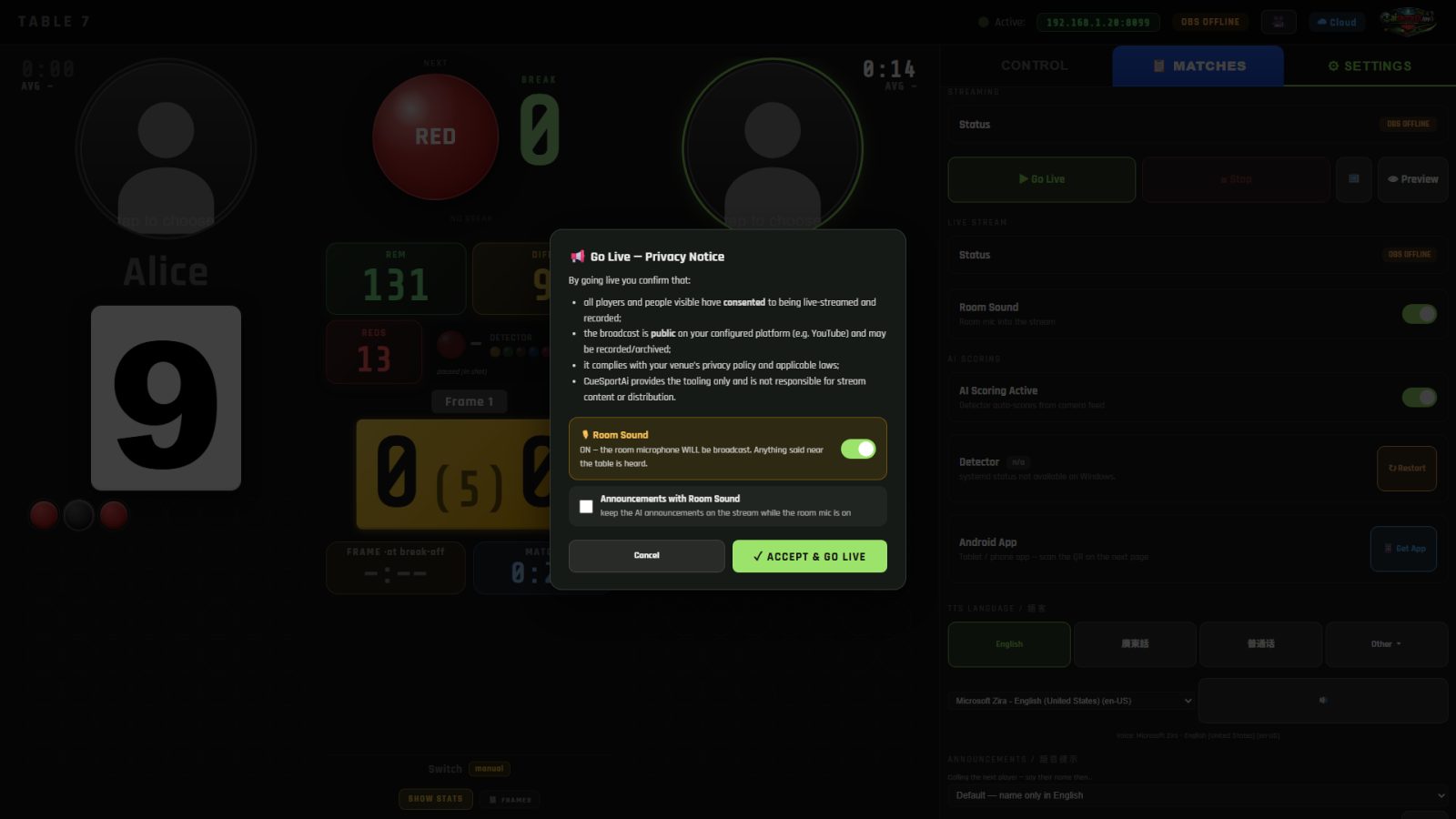
If a player in the match has opted out of streaming, the box refuses and shows Blocked — player privacy. If it reports a stream key or YouTube error, the channel needs fixing on the website; ask the club owner.
If your table has more than one stream camera, camera buttons appear under the preview; tap one to put it on air. ⚙ Cameras adds, renames or removes cameras (up to 4). A zoom slider appears for a camera that can zoom.
Stop
- ■ Stop ends the stream for every viewer.
- When a match ends, the stream stops by itself 5 minutes later. A banner (and the app's match-over screen) offers Keep streaming for 15, 30 or 60 minutes, for example for a presentation. Starting the next match within the 5 minutes keeps the stream going.
Commentary from a phone in the club
Anyone in the club can commentate from their phone, on the club Wi-Fi:
- In Settings → Streaming → Phone commentary, press 📱 QR.
- The commentator scans it, types their name (and the operator PIN if one is set) and taps ● Go on air. Their voice goes into the stream. They should wear headphones if they can hear the room speakers.
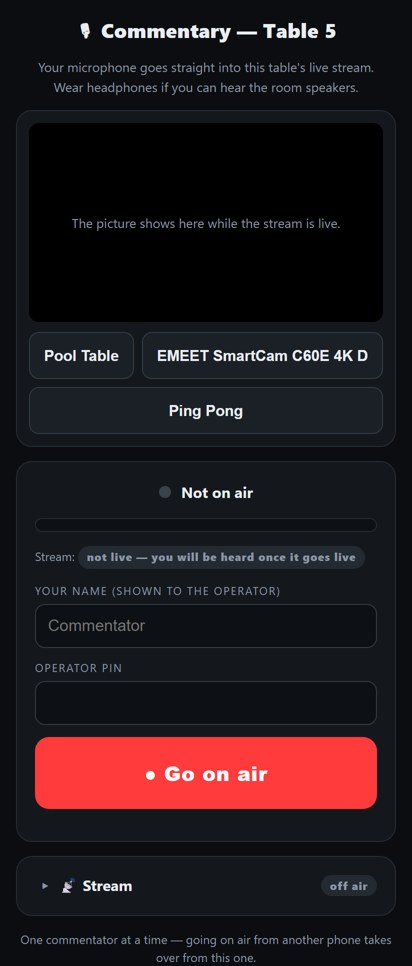
On the phone they can also ✏️ Draw on the stream, mark the ⚪ Cue ball strike point (shown for 15 seconds), switch stream cameras, show their picture on the stream, 🔇 Mute or go ■ Off air. The Stream panel at the bottom lets them start or stop the stream (with the same privacy notice) and set the box microphone level.
An ON AIR badge with their name shows on the stream. One phone commentator at a time: a second phone going on air takes over. The operator can take them off with ■ Off air. Set an operator PIN (Settings → Player App) so that nobody else on the Wi-Fi can go on air.
Remote commentator
A commentator somewhere else, for example at home, can commentate through the CueSportAi website. Turn on Settings → Streaming → Remote commentator (it says On — starts with the stream). While you are live the commentator sees the stream picture, and their voice and drawings come back onto the stream. Turn it off when they have finished. The switch only appears on boxes set up for remote commentary.
The AI box and the stream box use the same operator screen. The stream box user guide explains cameras, sound sources and commentary in more detail.
6. Settings
Settings apply to the whole table and are kept until changed.
AI scoring — the AI Scoring Active switch turns automatic scoring on and off (off = score by hand). Detector shows whether the camera detector is running, with a Restart button for when it isn't. Get App shows the QR to install the CueSportAi app.
Announcer language and voice — English, Cantonese, Mandarin and more; pick a voice and tap the speaker to hear it.
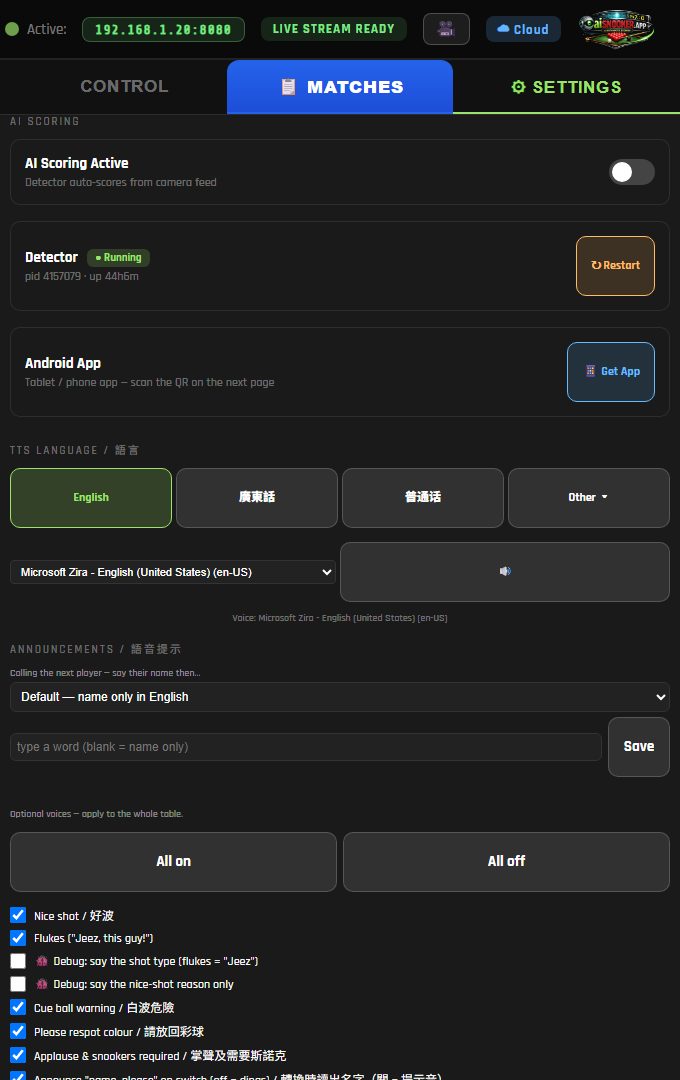
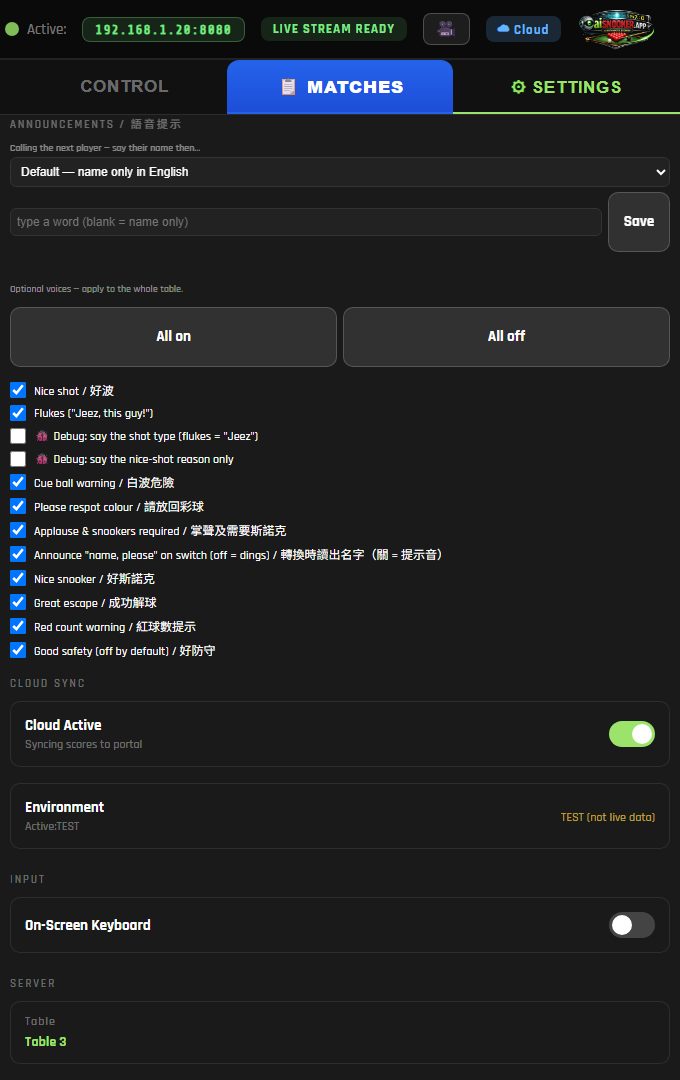
Announcements — how the box calls the next player (just the name, name, please, or your own word), and which optional calls it makes: nice shot, flukes, cue-ball warning, respot colour (and where), applause, snookers required, nice snooker, great escape, red-count warning, good safety. All on / All off set them in one go.
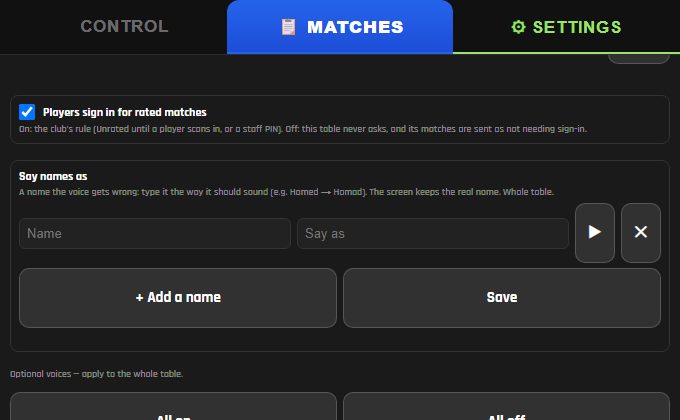
Players sign in for rated matches — on (the default) follows the club's rule: a match is Unrated until the players sign in or staff enter the PIN. Off: this table never asks, and its matches are sent as not needing sign-in.
Say names as — for names the voice gets wrong. Type the name, then how it should sound (e.g. Hamed → Homad), tap ▶ to hear it, then Save. The screens keep the real spelling.
Streaming — going live, Room Sound, phone commentary and the remote commentator: see §5 Go live and commentary.
Cloud sync — Cloud Active sends scores to the CueSportAi website; Environment shows whether the box is on the live or the test system. The Match row opens Stats, the player display (Kiosk), this table's QR and the match editor.
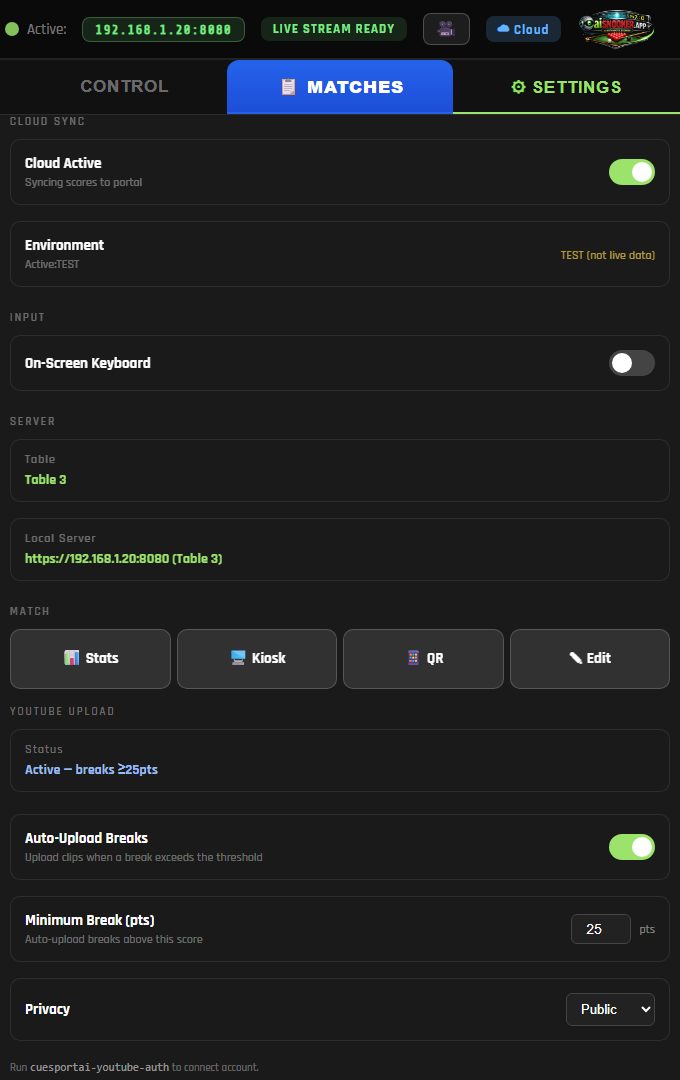
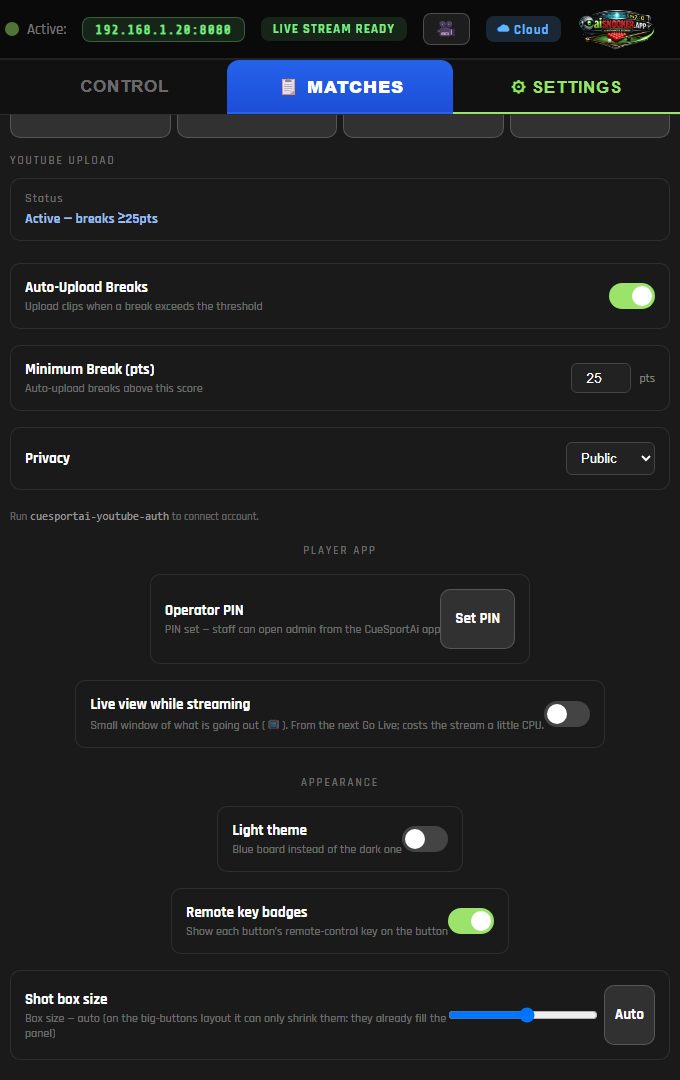
YouTube upload — break clips can upload automatically: set the minimum break and the privacy. Nice shots go to the club's Nice Shots playlist. Operator PIN lets staff control the table from the CueSportAi app.
After an update
When the box has been updated, an open operator screen shows a blue "Updated to v… — tap to refresh" bar. Tap it when convenient (not in the middle of a break).
7. Remote control
If the table has the CueSportAi remote: 1–7 score that ball, 8 touching ball, 9 free ball, 0 switch player. Settings → Remote key badges shows each button's key on screen.
8. When something looks wrong
| What you see | What to do |
|---|---|
| A pot not scored | press the ball's number button |
| A wrong pot, foul or switch | Back, then enter the right call if needed |
| Red count wrong | +1 Red / –Red, or Reset Reds |
| Nothing is being scored | Settings: is AI Scoring Active on and the Detector running? If not, Restart it (between frames) |
| Calls keep going wrong for the same balls | check the table lights are on and nothing is covering the camera; tell your club owner if it continues |
| No announcements | tap Tap for sound at the top of the screen; check the TV volume; check Settings → Announcements |
| A name is pronounced wrongly | Settings → Say names as |
| Match shows Unrated | players sign in with the QR, or staff enter the Staff PIN |
| The screen looks out of date after an update | tap the blue Updated bar, or reload the page |
Still stuck? Contact CueSportAi support from the website.